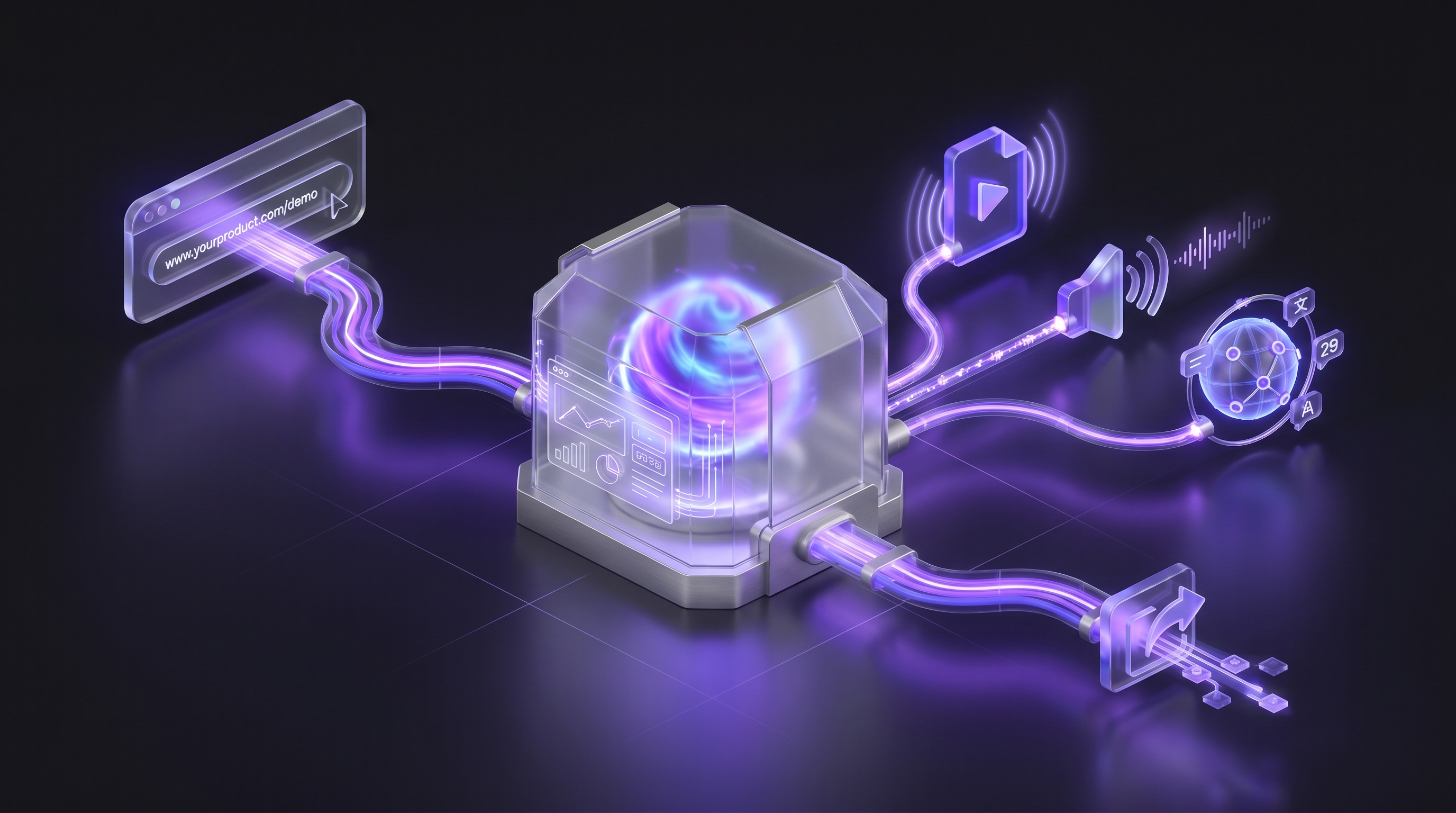
The question sounds like science fiction. You paste a URL into a text box, wait a few minutes, and download a finished product demo video with voiceover, captions, and smooth transitions. No recording. No editing. No manual work at all.
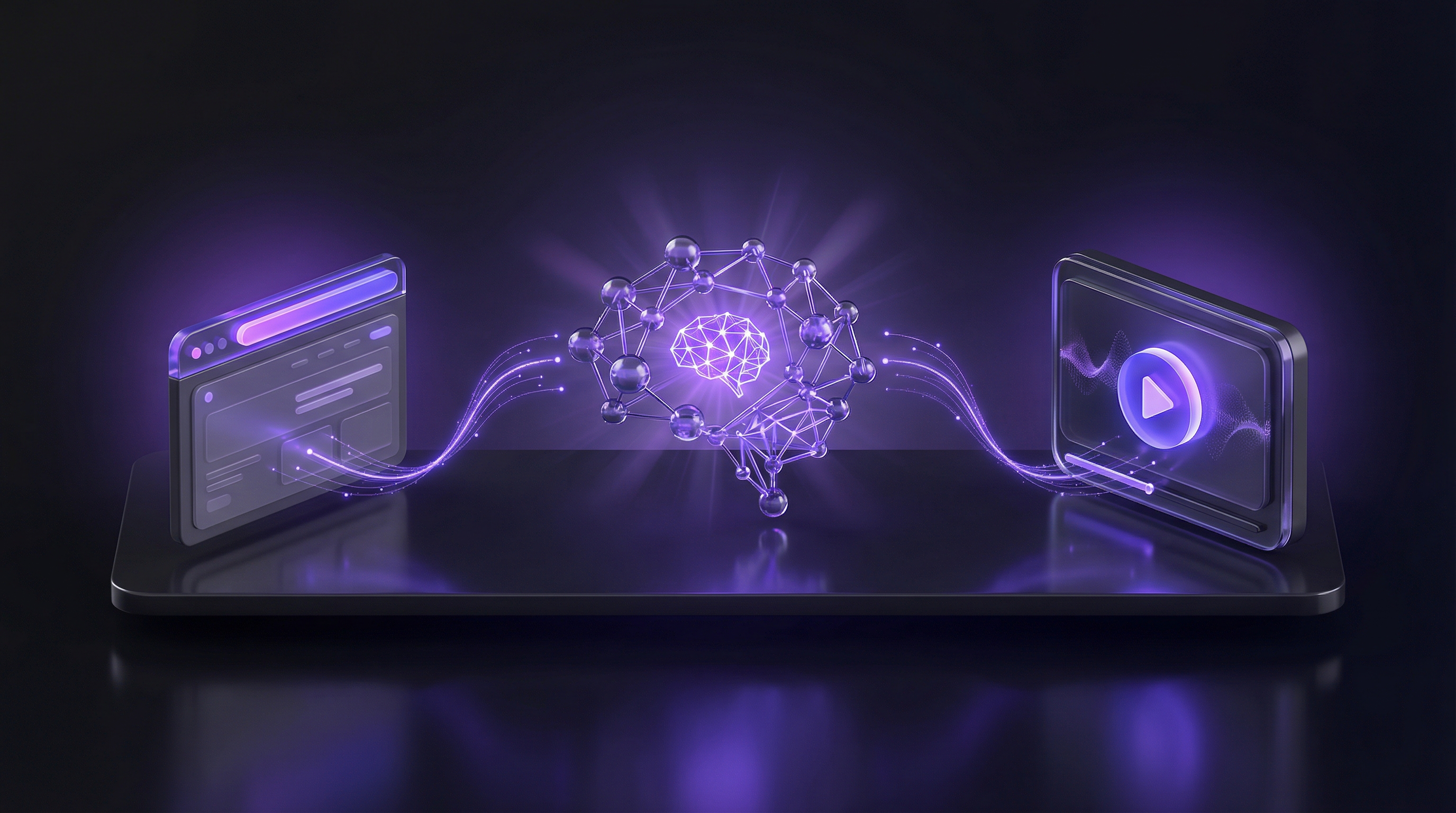
In 2026, this is not speculation. It is a working product. AI demo agents have moved from concept to production, and the pipeline that makes this possible is remarkably concrete. This post walks through exactly what happens between the moment you paste a URL and the moment you download a finished MP4, why no other tool on the market does this end to end, and what the output actually looks like. If you want a broader look at the tools in this space, our guide to AI demo video generators covers the full landscape. For a general primer on the process, see our guide on how to make a product demo video.
Why This Question Matters
The current demo creation process is broken in ways that most teams have just accepted as normal. A single product demo video takes 4 to 8 hours to produce when you factor in script writing, environment setup, screen recording (with multiple takes), video editing, voiceover recording, and branding. Teams outsource this work to agencies for $500 to $5,000 per video. Or they assign it to a product marketer who already has a full plate.
The result is what we call demo debt. Your product ships new features every week. Your demo library falls behind. Nobody has time to re-record. The videos on your landing page show an outdated UI. Your sales team sends demos that reference features you moved six months ago. The cost of keeping demos current is so high that most teams just accept the staleness.
A URL-to-video pipeline changes the economics entirely. When regenerating a demo takes 10 minutes instead of 4 hours, you can update your entire library every time your product changes. You can create demos for every feature, every persona, every vertical. You can produce them in 29 languages without multiplying your workload. The constraint shifts from "we do not have time to make demos" to "we can make as many as we need."
How It Works: The Full Pipeline
Here is what happens when you paste a URL into Demosmith and hit generate. No hand-waving. The actual steps.
Step 1: URL Parsing and Product Loading
The system receives your product URL and spins up a dedicated cloud browser instance through Browserbase. This is a real Chrome browser running in the cloud, not a screenshot engine or a static page renderer. The browser loads your product just like a user's browser would: it resolves DNS, fetches assets, executes JavaScript, and waits for the page to reach a stable state. If your product requires authentication, the browser handles the login flow using credentials you provide through a secure process.
Step 2: AI Navigation
Once the product is loaded, Gemini Flash 2.5 takes over. The model receives your flow description (what you typed about what the demo should show) and analyses every element on the page. It identifies buttons, forms, navigation menus, and interactive components. It decides what to click, what to type, and where to scroll based on your instructions and its understanding of how software interfaces work.
This is not a scripted macro. The AI adapts to your specific UI. If your "Create Project" button says "New Workspace" instead, the model figures that out. If your navigation has a different layout than what it has seen before, it adjusts. Playwright handles the actual browser automation (clicks, typing, scrolling) while Gemini Flash 2.5 handles the decision-making about what to interact with and in what order.
Step 3: Screen Capture and Cursor Tracking
As the AI navigates your product, the system records everything at high resolution. This is actual screen capture of your actual product running in a real browser. Not screenshots stitched together. Not AI-generated pixels. Real footage of your real UI, captured frame by frame.
The recording includes cursor tracking, which means the viewer sees a smooth, deliberate cursor movement that follows the AI's click path. This is important because cursor movement is one of the strongest visual cues in a product demo. It tells the viewer where to look and what matters. Manual screen recordings often have jerky or aimless cursor movement. The AI produces consistent, purposeful cursor paths every time.
Step 4: Auto-Editing
Raw screen recordings are rarely watchable. They contain page load times, loading spinners, moments of inactivity, and inconsistent pacing. The auto-editing pipeline addresses all of this.
The system identifies and cuts dead space: the two seconds where nothing happens between a click and a page transition. It adds zoom effects to highlight specific UI elements so the viewer's eye goes to the part of the screen that matters at each moment. It smooths out transitions between steps so the flow feels natural rather than abrupt. It adjusts pacing to match the narration speed, so the viewer has time to read and absorb each screen before moving on.
Step 5: Script Generation and Voiceover
Based on the actions taken during navigation, the AI generates a narration script that explains what is happening at each step. The script is not a dry list of actions ("the user clicks the button"). It reads like a professional voiceover: contextual, benefit-oriented, and paced for comprehension.
The script is then converted to speech using ElevenLabs TTS. This is not the robotic text-to-speech from a decade ago. The output sounds natural, with appropriate intonation, pacing, and emphasis. It supports 29 languages, which means you can generate the same demo with Spanish, German, Japanese, or Portuguese voiceover with one click. No re-recording. No translation workflow. No hiring voice actors in each market.
Step 6: Rendering
The final step combines everything into a finished video file. Remotion, a React-based video framework, composites the screen capture, cursor overlay, zoom effects, transitions, captions, and voiceover into a single timeline. FFmpeg handles the final encoding to produce an MP4 file.
The output includes captions in your chosen language (or multiple languages), branded with your logo and colours if you have set up a brand kit. You get a downloadable MP4 and a shareable link. Total elapsed time from URL to finished video: roughly 10 minutes.
What Makes This Different from Other AI Video Tools
The phrase "AI video tool" gets applied to a wide range of products that do fundamentally different things. Here is how the categories break down, and where Demosmith fits.
AI Avatar Tools (Synthesia, HeyGen)
These tools generate videos where a digital avatar reads a script on camera. They are useful for presenter-led content, training videos, and corporate communications. They do not interact with your product. If you want to show your UI, you provide screen recordings as b-roll, and the avatar narrates over them. The product footage is still something you have to record yourself.
Text-to-Video Tools (Pictory, InVideo)
These tools take a script or article and generate a video using stock footage, images, and text overlays. The output is generic by nature. You get clips of people in offices and abstract animations, not your actual product. Fine for marketing explainers. Useless for product demos.
Screen Recording Enhancers (FocuSee, ngram)
FocuSee adds auto-zoom and background effects to screen recordings. ngram layers AI editing on top of recorded footage. Each tool improves the editing step, but you still have to sit down and record your screen manually. The recording bottleneck remains.
Generative AI Video (Sora, Kling, Runway)
These models generate video from text prompts using diffusion-based generation. The output is AI-generated pixels: impressive artistically, but fundamentally unsuited for product demos. You cannot show your actual UI this way. The generated video will not match your product's interface, layout, or design. These tools also struggle with continuity past 10 seconds and frequently produce visual glitches.
Where Demosmith fits
Demosmith records real footage of your real product. The browser opens your URL. The AI clicks through your actual interface. The screen capture shows your real UI with your real data. This sidesteps every limitation of generative video: no 10-second clip restrictions, no visual glitches, no continuity problems. What the viewer sees in the video is exactly what a user would see in your product. For a full comparison across categories, see our roundup of demo automation tools in 2026.
Is the Quality Good Enough
This is the obvious question. Something produced in 10 minutes by an AI pipeline cannot possibly match the quality of a video produced by a professional editor in 8 hours, can it?
It depends on what you mean by quality. Let us break this down by what the output actually delivers.
What you get
- Resolution: Up to 4K output, which is more than sufficient for web embeds, sales emails, and social media.
- Voiceover: Professional-grade TTS from ElevenLabs. Not perfect (a trained ear can tell it is synthetic), but good enough that most viewers will not notice.
- Transitions: Smooth cuts between steps with zoom effects on key UI elements. Better than what most non-video-professionals produce manually.
- Captions: Branded, timed to the voiceover, available in 29 languages.
- Consistency: Every demo in your library has the same visual style, pacing, and quality. No more patchwork output from different team members using different tools and skill levels.
Where it falls short
You do not get frame-by-frame creative control. If you want to hold on a specific screen for exactly 2.3 seconds while a specific UI element pulses with a custom animation, you need a tool like Premiere Pro. The AI makes sensible editing decisions based on the content, but it does not give you a timeline to fine-tune.
For the vast majority of product demo use cases (landing pages, sales outreach, help centres, onboarding sequences, investor decks), the quality is ready to publish as-is. If you need broadcast-grade creative control, this is not the right tool. But then again, neither is spending 8 hours in Camtasia.
What About Complex Products
Not every product is a straightforward dashboard with a linear workflow. Here is how the AI pipeline handles edge cases.
Products behind login
This works. You provide credentials through a secure process, and the AI logs in before recording begins. The cloud browser handles the authentication flow the same way a regular browser would. Session cookies, CSRF tokens, and redirect chains are all handled automatically.
Third-party authentication
Simple OAuth flows (Sign in with Google, Sign in with GitHub) work without issues. Complex SSO setups, multi-factor authentication, or identity provider redirects may require additional guidance. The system can handle many of these flows, but you might need to provide specific instructions in your prompt about how to navigate the auth screens. In some cases, a second pass produces better results than the first attempt.
Multi-page workflows
The AI can navigate across multiple pages, tabs, and even browser windows. A workflow that starts on a dashboard, moves to a settings page, opens a modal, submits a form, and lands on a confirmation screen is well within the system's capabilities. Each transition is captured and edited into a smooth sequence.
Dynamic content and animations
The cloud browser runs a full Chrome instance with JavaScript execution, so dynamic content, animations, and client-side rendering all work as expected. The AI waits for page transitions to complete before proceeding, which prevents half-loaded states from appearing in the recording.
Where it struggles
Highly interactive applications where the demo needs to demonstrate real-time collaboration features (multiple cursors on screen, live chat, simultaneous editing) require special handling. Applications with heavy WebGL or 3D rendering may record at lower framerates than standard UI. And products that require very specific data states (a particular set of records in a particular configuration) may need you to prepare the demo environment in advance.
The Business Case
The technical pipeline is interesting. The economics are what make it practical.
Time comparison
One demo video: 4 to 8 hours manually versus roughly 10 minutes with AI. Ten demo videos: 40 to 80 hours manually versus roughly 100 minutes with AI. That is the difference between a dedicated sprint and an afternoon.
Cost comparison
Outsourcing a single demo video to an agency costs $500 to $5,000 depending on length, complexity, and production quality. Demosmith starts at $40 per month on the Starter plan, which includes multiple demo generations. The Pro plan at $99 per month adds higher resolution and priority rendering. The Business plan at $250 per month supports team workflows and higher volume. Even on the Business plan, a single month costs less than one outsourced video.
Scale comparison
The real economic shift is in multi-language production. Producing a demo video in 5 languages manually means 5 times the recording, 5 times the voiceover work, and 5 times the editing. Producing it in 29 languages manually is not realistic for most teams. With Demosmith, you generate the demo once and produce all 29 language versions with one click. The cost and time scale by seconds, not by multiples of the original effort.
For a deeper look at the economics of moving away from manual recording, see our guide on creating SaaS demo videos without screen recording.
Getting Started
If you want to test this for yourself, the process is straightforward.
- Go to demosmith.ai and sign up. There is a free watermarked tier that lets you generate demos without entering a credit card.
- Paste your product URL. This is the URL the cloud browser will open. It can be your live product, a staging environment, or a preview deployment.
- Describe the flow. Write a natural-language description of what you want the demo to show. Be specific about the steps. "Show the user creating a new report, selecting filters for date range and region, then exporting as PDF" is better than "show the reporting feature." For detailed guidance on writing effective prompts, see our Demosmith prompt guide.
- Wait roughly 10 minutes. The AI navigates your product, records footage, edits, generates voiceover and captions, and renders the final video. You can watch progress in real time.
- Download or share. Get the MP4 file, grab the shareable link, or embed the demo on your website.
The free tier produces watermarked output. Paid plans remove the watermark and add higher resolution, priority rendering, and team features.
Conclusion
Yes, AI can generate a demo video from just a product URL. Demosmith does this today. It opens your real product in a cloud browser, navigates the UI autonomously, records real footage, edits it, adds voiceover in 29 languages, and renders a finished MP4. The whole process takes about 10 minutes.
Three things to take away from this:
- The footage is real. This is not generative AI creating pixels that look like your product. It is a browser recording your actual UI. What you see in the video is what your users see in the product. This distinction matters for accuracy, trust, and brand consistency.
- The economics are transformative. One video in 10 minutes instead of 8 hours. Twenty-nine languages with one click. A full demo library that stays current with your product because regeneration is cheap enough to do after every release.
- No other tool does this end to end. AI avatar tools generate presenters, not product footage. Screen recording enhancers still require you to record. Text-to-video tools produce stock footage, not your UI. Demosmith is the only tool that takes a URL and produces a finished demo video without any manual recording or editing.
If you have been spending hours recording and editing product demos, or avoiding making them entirely because the process is too slow, try generating one from a URL. Sign up for free and see what the output looks like for your product.