
Introduction
Help center articles are how most customers find answers on their own. They let customers resolve issues without waiting for a reply. But writing them takes time. You record the screen, take screenshots, write out each step, format the whole thing, and send it through review. One article can eat an hour or more.
Your demo video already contains the full walkthrough. It has the right screens in the right order. Docusmith, the document export tool built into Demosmith, turns that demo into a structured help article you can paste into your help desk tool and publish in minutes. If you are new to how this works, start with our guide to what an AI demo agent is and how it captures product flows automatically.
Why help articles matter
Self-serve support reduces ticket volume. When customers can find answers on their own, they do not submit requests. Your support team spends less time answering the same questions over and over. Customers prefer it too. Most people would rather read a quick article than wait hours for an email reply. A strong help center is one of the highest-leverage plays for Demosmith in customer support, where each article deflects tickets around the clock.
The problem is keeping those articles current. Product teams ship new features and move buttons around. Each change can break an article that was accurate last month. Staying on top of those updates is a real challenge. If your team struggles with this, our guide on how to keep demos updated when the UI changes covers the same problem from the video side.
The traditional workflow vs Docusmith
Writing a help article the traditional way goes something like this. You open the product, walk through the flow, and take screenshots at each step. You write numbered instructions for each screen. You format everything in your help desk tool, add headings and alt text, and send it to a reviewer. When the reviewer sends feedback, you make edits, re-take any screenshots that changed, and publish. That cycle takes 45 to 90 minutes per article.
Docusmith shortens that to three steps. First, you create a demo in Demosmith that covers the flow you want to document. Second, you generate a document from that demo and choose your format. Third, you copy the output into your help desk tool, make any edits you need, and publish. That is 10 to 15 minutes of active work instead of over an hour.
Step-by-step: demo to help article
Here is the full process from demo to published help article. For a deeper look at the document export feature itself, see our guide on how to convert a Demosmith demo into a document.
Step 1: Create your demo in Demosmith. Enter your product URL and write a prompt that walks through the feature or workflow you want to document. Demosmith records the flow and produces the finished video. The demo captures every screen and click along the way.
Step 2: Open the demo and click Generate Document. Once your demo is finished, open it from your dashboard. You will see the Generate Document button. Click it to open the Docusmith export modal.
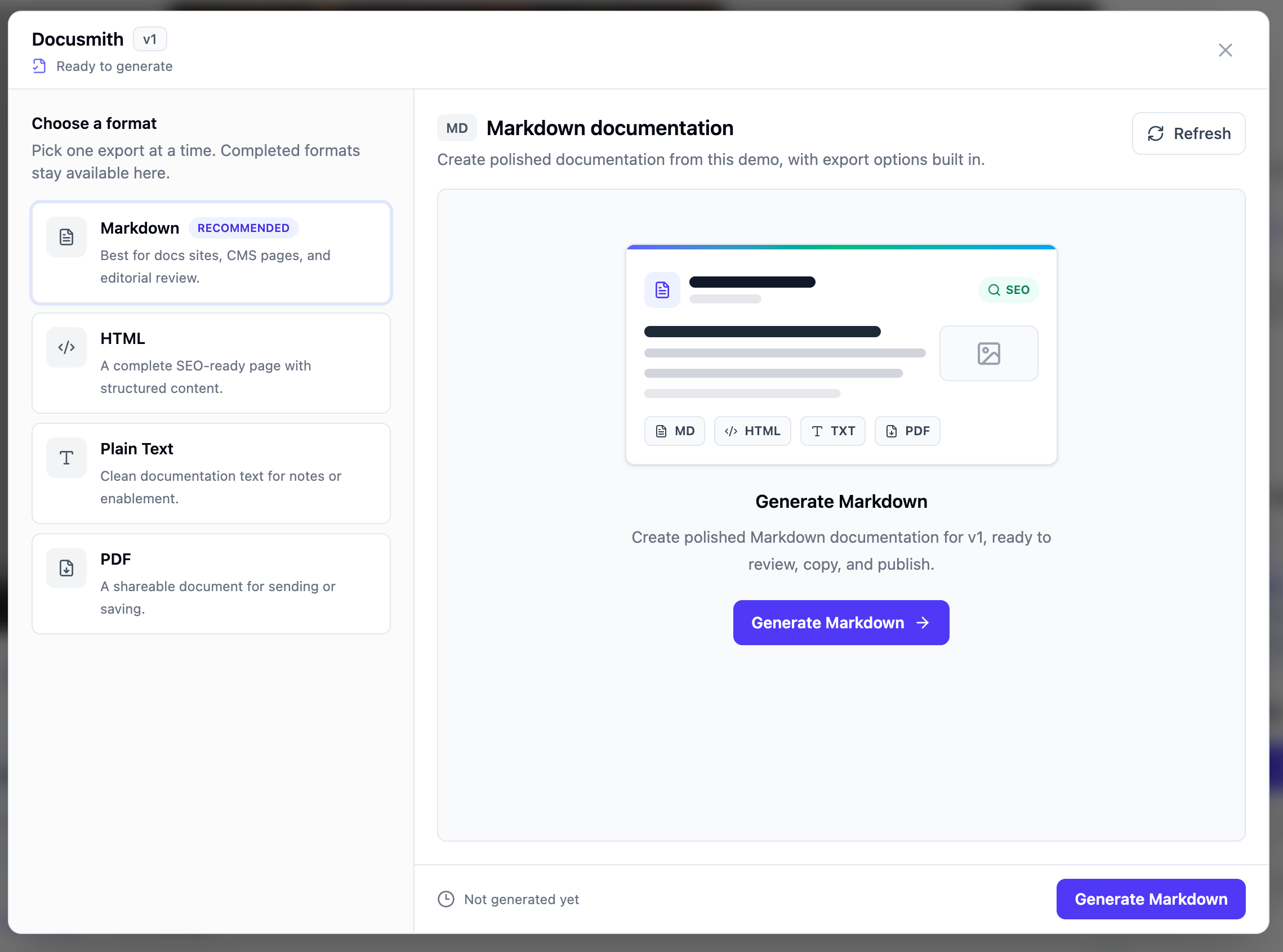
Step 3: Choose Markdown. Markdown is the best format for help center articles. It works with Zendesk, Intercom, GitBook, Notion, Confluence, and most other help desk tools. You paste it in and the formatting carries over.
Step 4: Generate and preview. Click generate and Docusmith produces a structured walkthrough based on the screens and actions in your demo. You can preview the output before copying it.
Step 5: Copy the Markdown into your help desk tool. Paste the output into Zendesk, Intercom, GitBook, Notion, or Confluence. The headings, steps, and structure carry over.
Step 6: Edit, add context, and publish. The generated article is a strong starting point. Add any context your readers need, like prerequisites or links to related articles. When you are happy with it, publish.
What the output looks like
The Docusmith output is a structured walkthrough. Steps appear in the same order as the demo, and each one reflects the screens and actions the demo captured. Headings break the flow into sections. The text describes what the user does at each stage, not just what appears on screen.
Think of it as a strong first draft, not a final published article. You will want to add context your readers need and adjust wording to match your support voice. But the heavy lifting, getting the steps right and in order, is done for you.
Other formats for support teams
Markdown is the best choice for help center articles, but Docusmith supports other formats too.
- Markdown: Paste into Zendesk, Intercom, GitBook, Notion, or Confluence. Formatting carries over automatically.
- Plain text: Useful for support tickets and email replies where you want to drop a quick set of instructions without formatting.
- PDF: Attach to onboarding emails or share with enterprise customers who want a downloadable guide.
- HTML: Paste into a standalone tutorial page or a custom docs site that does not support Markdown input.
Pick the format that fits where the content will live. You can generate the same demo in multiple formats if you need the same walkthrough in different places.
Keeping articles current
When the UI changes, your help articles go stale. A button moves or a menu gets renamed. The article now says the wrong thing, and your customers get confused.
Docusmith handles this on a per-version basis. When the product changes, create a new demo that reflects the updated flow, then generate a fresh document from it. The new output picks up the current screens and actions. Paste it over the old article, make any edits, and republish.
This is faster than updating articles by hand because you do not have to re-take screenshots or re-write steps. The demo does the capturing for you. For tips on writing prompts that produce accurate demos, see our guide on how to write a great Demosmith prompt.
Key takeaways
- Your demo video already contains the full walkthrough. Docusmith turns it into a structured help article you can paste into your help desk tool.
- The traditional help article workflow takes 45 to 90 minutes. Docusmith cuts that to 10 to 15 minutes of active work.
- Markdown is the best format for help center articles. It works with Zendesk, Intercom, GitBook, Notion, and Confluence.
- The generated output is a strong first draft. Add context, adjust wording, and remove anything that does not apply before publishing.
- When the UI changes, create a new demo version and regenerate the document. This is faster than updating articles by hand.
- Docusmith also exports plain text for support tickets, PDF for onboarding emails, and HTML for standalone tutorial pages.
Two things worth knowing
- You can generate documents from any demo. There is no separate setup step. If you have a demo in your dashboard, you can export it as a document right now.
- The same demo produces a video and a document. You do not need to create two separate assets. One demo gives you a shareable video for marketing and a text walkthrough for your help center.