A product demo takes effort to put together. You picked the right flow, wrote the right prompt, and got a polished video out of Demosmith's AI agent. That video does one job well: it shows someone what your product can do.
But that same walkthrough already contains everything your help docs, onboarding guides, and sales follow-ups need: the steps, the context, the full sequence. Most teams end up rewriting it from scratch anyway.
Docusmith fixes that. It takes a completed demo and generates written documentation you can export as Markdown, HTML, plain text, or PDF. No blank page, no rewriting. Here is how.
What Docusmith creates
Docusmith reads through a demo and produces a written document from the workflow it covers. The screens, the steps, the sequence. All of it.
You can export in four formats:
- Markdown for docs sites, CMS drafts, and editing workflows
- HTML for a complete page structure you can publish directly
- Plain text for internal notes, sales enablement, and support replies
- PDF for sharing a polished file with customers or stakeholders
Markdown is the best default if you plan to edit, review, or publish the document in another tool. You can always generate other formats from the same demo later.
Before you start
Three things to check before generating a document:
- Your demo is complete. Docusmith works with completed demos, not ones still in progress.
- You have selected the right version. If your demo has multiple versions (edits, language variants, updated walkthroughs), pick the one you want to document. Docusmith generates documentation for the selected version.
- Your plan supports it. You need a paid plan — Starter, Pro, or Business — to generate documents.
One format generates at a time. If you want Markdown and PDF, generate Markdown first, then PDF after it finishes.
Convert your demo into a document
Step 1: Open a completed demo
Go to your Demosmith dashboard and open the demo you want to document.
On the demo details page, confirm you are viewing the correct version. If the demo has multiple versions, select the one that matches the workflow you want documented.
Step 2: Click Generate Document
On the demo details page, click Generate Document.
This opens Docusmith, where you choose the export format and start generation.
Step 3: Choose an export format
Inside Docusmith, pick the format you want to generate first.
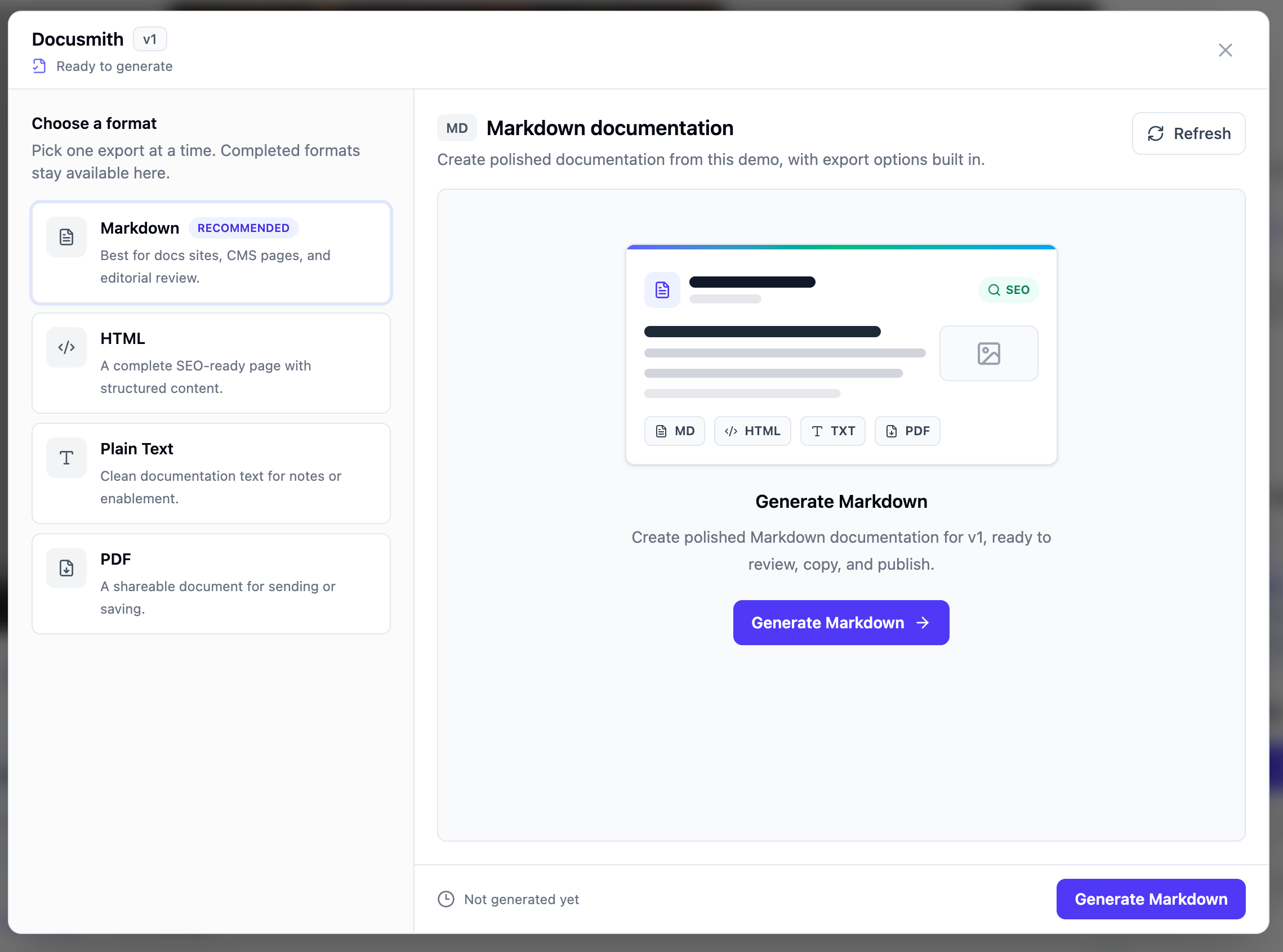
Not sure which to pick? Start with Markdown. It is the most flexible option for docs teams, content teams, and anyone who wants to edit before publishing.
Step 4: Generate the document
Click Generate for the format you selected.
Docusmith begins preparing the document. This can take a minute or two, especially for walkthroughs with many steps. You do not need to keep the window open. Close Docusmith and come back later. When you reopen it, Demosmith checks the latest status and shows the finished document when it is ready.
Step 5: Preview, copy, or download
When the document is ready, preview it inside Docusmith.
For Markdown and HTML, switch to the Code tab to inspect the raw source. This is useful if you want to paste Markdown into a docs system, review the HTML structure, or hand the output to a teammate.
From there you can:
- Copy the generated content to your clipboard
- Download the file
- Open a PDF in a new tab
- Use the output as a starting point and edit before publishing
Which format should you choose?
Pick based on where the document is going:
- Markdown for docs sites (GitBook, Notion, Confluence), CMS editing, help center articles, and technical review.
- HTML when you want a ready-to-publish web page. Good for standalone tutorials or SEO landing pages.
- Plain text when you want clean copy for internal docs, sales follow-ups, support replies, or quick notes.
- PDF when you need a polished file to send after a sales call, attach to a proposal, or hand to a customer.
Each format generates independently. Once the active one finishes, you can generate another from the same demo version.
What happens while it generates
Docusmith reads through the demo and produces a written document from the workflow it covers.
Generation takes a minute or two. You can wait in the modal if you want, or close it and check back later. Demosmith tracks the status in the background. When you reopen Docusmith on that demo, it picks up where things left off.
While one format is generating, other formats wait. You cannot run two at once. Once the active job finishes, you are free to generate the next format.
Ways to use the generated document
Once Docusmith finishes, you have a written version of your demo ready to use. Here are some ways teams put it to work:
- Help center articles. Paste the Markdown into your help desk tool and publish it as a support resource.
- Product documentation. Add it to your docs site as a walkthrough guide for new users.
- Sales enablement. Send the PDF after a demo call so the prospect has a written reference.
- Customer onboarding. Use it as a handout during onboarding or attach it to a welcome email.
- SEO content. Turn the HTML output into a tutorial page that targets how-to queries for your product.
- Support replies. Copy the plain text into a support ticket when a customer asks how to do something your demo already covers.
You are not starting from a blank page. Your demo already has the workflow and the context. Docusmith gives you a written version you can edit and publish. The same process works for any demo you create in Demosmith.
Key takeaways
- A Demosmith demo can become more than a video. Docusmith turns it into written documentation in a few clicks.
- Open the demo, click Generate Document, choose a format, and click Generate. The whole process takes under five minutes of your time.
- Start with Markdown if you are unsure which format to pick. It is the most flexible for editing and publishing.
- You can close the modal while generation runs. Come back later and the document will be waiting.
- The output is a starting point. Edit it, add context, adjust the structure, and publish it wherever your team needs it.
- Docusmith works on a per-version basis. If your demo has multiple versions, each one can produce its own document.
Demos are expensive to create. A Demosmith demo contains the full product flow, the right screens, and the right sequence. Docusmith makes that same walkthrough work as documentation, a help article, a sales handout, or SEO content without starting from a blank page.