Your new user just signed up. They are staring at your product dashboard for the first time, trying to figure out what to do next. In that moment, the distance between "this looks interesting" and "I am never coming back" is measured in seconds. The question is whether you have something ready to bridge that gap.
For most SaaS products, onboarding videos are the single most effective tool for turning new signups into active users. They show people exactly what to do, in the right order, at the right moment. Teams that lean on Demosmith for product onboarding generate these activation videos automatically so they never fall out of step with the product. But creating and maintaining a library of onboarding videos has traditionally been so time-consuming that most teams either do not have them or have a handful of outdated ones collecting dust in a help center.
AI automation changes this equation entirely. This guide covers why onboarding videos matter, why the manual approach fails at scale, and how to build an automated onboarding video library that stays current with every product update. For a broader look at the no-recording approach, our guide on creating an AI product walkthrough video covers the full workflow. If you are new to onboarding video entirely, start with our beginner's guide to onboarding demo videos for the foundational concepts before diving into automation.
Why Onboarding Videos Matter More Than You Think
The impact of onboarding videos on SaaS metrics is well-documented and significant:
- 18% higher trial-to-paid conversion: Users who engage with onboarding video content are significantly more likely to convert to paid plans. Video makes abstract features tangible, reducing the cognitive load of learning a new tool.
- 90% reduction in 1:1 training sessions: Instead of scheduling live walkthroughs for every new user or customer, self-serve video handles the vast majority of onboarding questions.
- 67% lower time-to-value: Users who watch onboarding videos reach their first meaningful outcome faster, which directly correlates with retention.
- 50% fewer onboarding-related support tickets: When users can see how to do something instead of describing their confusion in a text ticket, the entire team wins. For a deeper look at how CS teams use video beyond onboarding, see our guide on demo videos for customer success.
The first 24 hours after signup determine whether a user becomes a customer or a churn statistic. Onboarding videos compress the learning curve and get users to value faster than any other content format.
Why Video Beats Text for Onboarding
You might wonder: why not just use text-based guides, tooltips, or interactive walkthroughs? Those all have their place, but video has unique advantages for onboarding:
- Visual memory is powerful. People retain 95% of a message when watching video compared to 10% when reading text. For procedural knowledge, "how to do X in your product," visual demonstration is the most efficient format.
- Video sets the pace. Unlike text documentation that users skim, video controls the pacing. You can ensure users see each step in the right order, at the right speed, with appropriate emphasis.
- Emotional engagement. A well-produced onboarding video with voiceover narration feels personal and welcoming. It says "we invested in helping you succeed," which builds early trust and brand affinity.
- Asynchronous accessibility. Users can watch onboarding videos at their own pace, pause, rewind, and re-watch. This is especially valuable for complex products where users may need to revisit instructions multiple times.
The Problem with Manual Onboarding Videos
If onboarding videos are so impactful, why does not every SaaS company have a comprehensive library? Because creating and maintaining them manually is a recurring nightmare.
They Break with Every UI Update
This is the biggest problem. Your product team ships a new design for the settings page. Now your "How to configure your account" video shows a UI that no longer exists. The narration says "click the blue button in the top right" but the button is now green and on the left. The video goes from helpful to confusing overnight.
For fast-shipping SaaS teams pushing weekly updates, this means onboarding videos have a shelf life of weeks. The choice becomes: dedicate constant resources to re-recording, or accept that your onboarding videos will frequently be wrong.
They Do Not Scale
A comprehensive onboarding library needs 15-30 videos covering different features, workflows, and user personas. At 4-6 hours per video (scripting, recording, editing, voiceover, branding), that is 60-180 hours of production work just for the initial set. Most teams have neither the time nor the specialized skills to produce this volume of content.
They Are Inconsistent
When different team members record different videos over different weeks, the result is a patchwork of varying quality levels, narration styles, visual treatments, and branding approaches. Some videos have professional voiceover. Others have ambient office noise. Some use zoom effects. Others are raw screen recordings. This inconsistency undermines the professional impression you are trying to create.
They Cannot Personalize
Different users need different onboarding paths. A marketing manager and an engineer using the same product need to see different workflows emphasized in different orders. Manual video production makes personalization prohibitively expensive; you would need separate video sets for each persona.
Building a Scalable Onboarding Video Library
Before diving into automation, you need a clear architecture for your video library. A well-structured library ensures users can find the right video at the right moment and that your content covers the complete onboarding journey.
Structure by User Journey Stage
Organize your onboarding videos into stages that mirror the user's progression through your product:
- Getting Started (Day 1): Account setup, initial configuration, first-time orientation. These videos answer: "What do I do first?"
- Core Workflows (Week 1): The primary tasks your product is designed for. These videos answer: "How do I do the main thing this product helps with?"
- Advanced Features (Week 2-4): Power user capabilities, integrations, customization. These videos answer: "How do I get even more value?"
- Administration (Ongoing): Team management, billing, settings, permissions. These videos answer: "How do I manage this product for my team?"
Ideal Video Length: 60-90 Seconds Per Task
The optimal length for an onboarding video is 60 to 90 seconds. This is long enough to fully demonstrate a single task but short enough that users will actually watch it. Videos that run longer than 2 minutes see significant dropoff in completion rates.
The key principle: one video, one task. Do not try to cover multiple workflows in a single video. If a process has distinct phases, split them into separate videos and link them sequentially.
Task-Focused vs Feature-Focused Videos
This distinction is critical and often misunderstood. Most onboarding libraries are organized by feature: "The Dashboard," "The Reports Module," "The Settings Page." This is the wrong approach.
Feature-Focused (Avoid This)
- "How to use the dashboard"
- "Understanding the reports module"
- "Settings and configuration overview"
Feature-focused videos mirror your product's navigation structure, not the user's mental model. They answer "what does this feature do?" when the user is actually asking "how do I accomplish my goal?"
Task-Focused (Do This Instead)
- "How to track your team's weekly progress"
- "How to generate a monthly revenue report"
- "How to invite team members and set permissions"
Task-focused videos start from the user's intent and show the product in service of that goal. The feature is the vehicle, not the destination. This approach aligns with how users actually search for help and makes your library significantly more useful.
Users do not think in features. They think in tasks. "I need to invite my team" not "I need to use the team management module." Structure your onboarding library accordingly.
Example: An Onboarding Library for a Project Management Tool
Here is what a well-structured onboarding library looks like in practice:
Getting Started:
- How to create your first project (60s)
- How to invite your team members (45s)
- How to set up your workspace preferences (60s)
Core Workflows:
- How to create and assign tasks (75s)
- How to track progress with the board view (60s)
- How to set deadlines and dependencies (90s)
- How to communicate with your team on tasks (60s)
Advanced Features:
- How to create custom workflows (90s)
- How to set up automation rules (90s)
- How to connect your favorite tools via integrations (75s)
- How to build custom dashboards for reporting (90s)
Administration:
- How to manage team roles and permissions (60s)
- How to configure billing and upgrade your plan (45s)
- How to export your data (60s)
That is 14 videos totaling roughly 15 minutes of content. Produced manually, this library would take 60-80 hours to create — a challenge closely tied to scaling product demo creation more broadly. Our product demo automation guide covers all three levels of automation in detail. With AI automation, it takes an afternoon.
How AI Automation Solves the Maintenance Problem
The maintenance problem is what kills most onboarding video libraries. You invest 60+ hours building the initial set, and within a month, half the videos show outdated UI. AI automation solves this in two fundamental ways:
Regeneration, Not Re-Recording
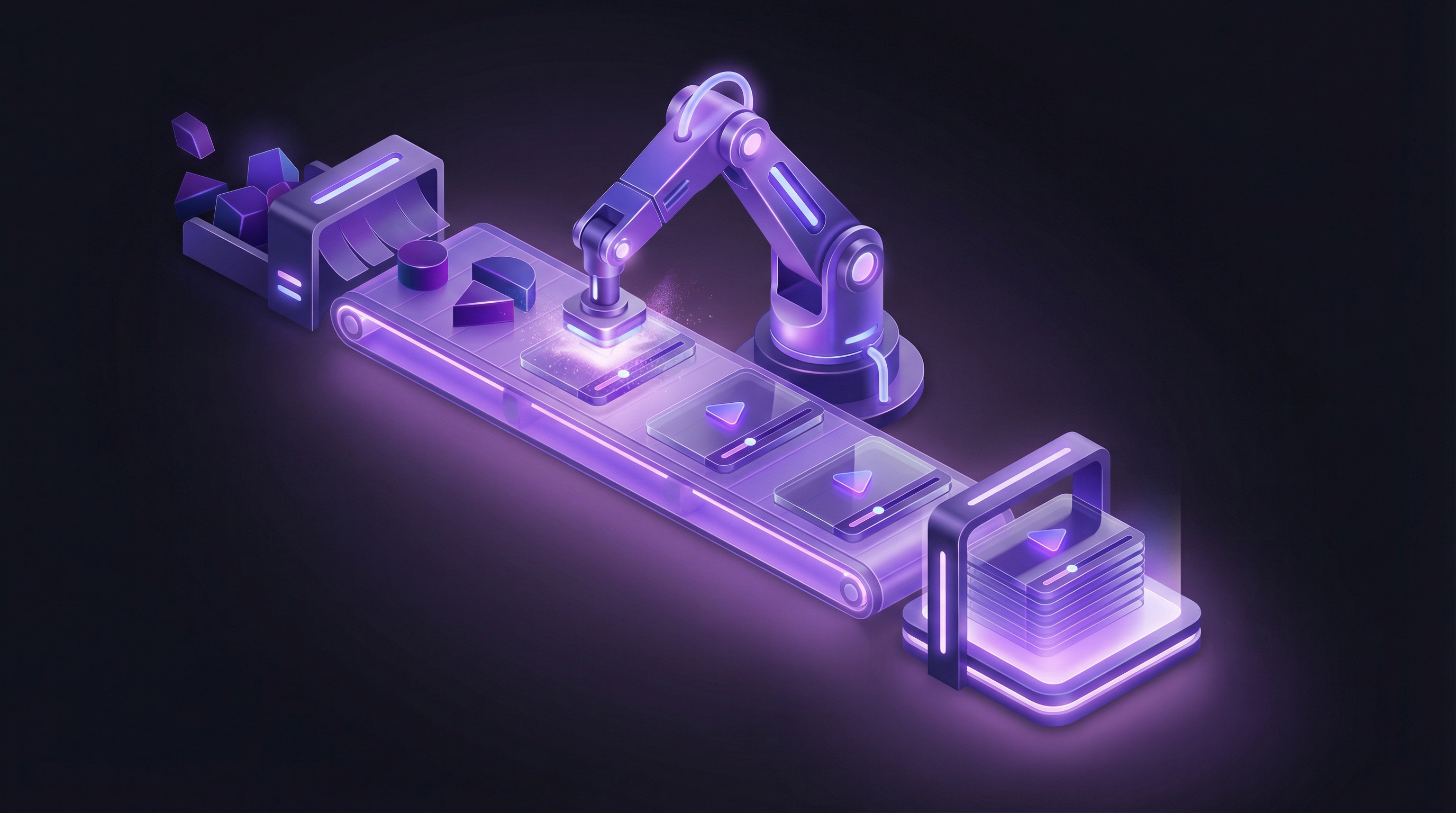
When your product changes, you do not need to set up a recording environment, re-capture your screen, re-edit, and re-add voiceover. With an AI demo tool like Demosmith, you simply regenerate the video. The AI demo agent navigates your updated product, captures the current UI, and produces a new video with the same flow, narration style, and branding. The entire process takes minutes, not hours.
This changes the economics of maintenance from "painful and expensive" to "trivial and automatic." When updating a video takes 5 minutes, you can update your entire onboarding library every sprint if needed.
Consistency at Scale
Every video generated by AI follows the same production standards: the same zoom behavior, the same transition style, the same voiceover quality, the same branding treatment. Whether you have 5 onboarding videos or 50, they all look and sound like they came from the same production studio. This consistency builds a professional impression that manual production struggles to match.
The Demosmith Workflow for Onboarding Libraries
Here is how teams use Demosmith to build and maintain their onboarding video libraries:
- Define your video library structure using the task-focused framework above
- Write flow descriptions for each video: a natural-language description of the steps to show
- Generate all videos by pasting your product URL and entering each flow description. Demosmith's AI navigates your product, captures the workflow, auto-edits, adds voiceover and captions, and applies your brand kit
- Review and fine-tune: adjust timing, narration, or emphasis as needed
- Publish to your demo library: Demosmith provides shareable links for each video that you can embed in your help center, in-app guides, or email sequences
- Regenerate after product updates: when your UI changes, regenerate affected videos in minutes
The entire initial library creation for 15-20 videos takes a single day. Ongoing maintenance becomes a lightweight, regular process rather than a dreaded project.
Best Practices for Onboarding Video CTAs and Next Steps
An onboarding video should never end in a dead end. Every video should guide the user toward a next action. Here are the most effective CTA strategies for onboarding content:
Progressive CTAs
Each video should point to the natural next step in the user's journey:
- "Create your first project" video ends with: "Now that your project is set up, learn how to invite your team" (link to next video)
- "Invite team members" video ends with: "With your team onboard, here's how to create and assign your first tasks" (link to next video)
This creates a guided path through your onboarding library, ensuring users build knowledge sequentially rather than getting lost in a random collection of videos.
Action-Oriented CTAs
The best CTAs prompt the user to immediately apply what they just learned:
- "Ready to try it? Open your dashboard and create your first project now."
- "Go to Settings and invite your first team member; it takes 30 seconds."
These CTAs bridge the gap between watching and doing, which is where real onboarding happens.
Contextual Help CTAs
At the end of each video, offer an escape hatch for users who need more help:
- "Questions? Visit our help center for detailed documentation."
- "Need personalized guidance? Book a quick call with our success team."
Milestone Celebration
At key points in the onboarding journey, acknowledge the user's progress:
- "Congratulations — you have set up your workspace. You are now ready to start managing projects like a pro."
- "You have completed the core setup. Here are three advanced features that power users love."
These moments create positive reinforcement and motivate users to continue exploring your product.
Implementation Roadmap: From Zero to Full Onboarding Library
Here is a practical, phased approach to building your automated onboarding video library:
Phase 1: Foundation (Week 1)
- Audit your current onboarding. What content do you have today? What are the biggest gaps? Where are users dropping off?
- Map your user journey. Identify the 5-7 most critical tasks a new user needs to complete in their first week.
- Write flow descriptions. For each critical task, write a clear, step-by-step description of what the video should show.
Phase 2: Core Library (Week 2)
- Generate your "Getting Started" videos. Start with the 3-4 videos that cover day-one essentials.
- Generate your "Core Workflow" videos. Add 4-5 videos covering the primary tasks your product enables.
- Review and refine. Watch each video, adjust narration or timing where needed, and ensure the progressive CTA chain flows logically.
Phase 3: Distribution (Week 3)
- Embed in your help center. Create an "Onboarding" or "Getting Started" section with your video library organized by journey stage.
- Add to your welcome email sequence. Include the most relevant onboarding video in each drip email during the first week.
- Surface in-app. Trigger contextual video recommendations based on where the user is in your product. When they visit the Reports page for the first time, surface the "How to create your first report" video.
Phase 4: Expand and Maintain (Ongoing)
- Add advanced feature videos. Expand your library to cover power user workflows and administration tasks.
- Build persona-specific paths. Create different video sequences for different user roles.
- Regenerate after releases. After each product update that changes UI, regenerate affected videos. With AI automation, this becomes a routine part of your release process rather than a separate project.
- Track engagement. Monitor which videos are most-watched, where users drop off, and which CTAs drive the most action. Use this data to continuously improve your library.
The best onboarding video libraries are not built once; they are living systems that evolve with your product. AI automation makes this sustainable by reducing the cost of change from hours to minutes. Teams that record once and publish everywhere get even more leverage from each video by turning it into documentation, PDF, and HTML alongside the original.
Start Small, Scale Fast
You do not need to build a 30-video library on day one. Start with the 5 most critical onboarding tasks, the ones that determine whether a new user finds value in their first session. Generate those videos, distribute them strategically, and measure the impact on your activation and conversion metrics.
Once you see the results (and you will see them), expanding the library becomes easy because the infrastructure and process are already in place. With Demosmith, each additional video takes minutes to create, minutes to update, and costs a fraction of what manual production requires.
Your users deserve an onboarding experience that is as polished and current as your product itself. Automated onboarding videos make that possible at any scale — and if you are still evaluating which platform to use, our guide to the best AI demo video generators can help you choose the right tool.