What Are Claude Connectors?
A Claude connector links Claude to another app, so it can look things up there and act on your behalf. Connect Notion and Claude can search your docs. Connect Linear and it can file the bug you just described. Connect a video tool and it can hand you back a finished video.
Claude only reaches what you can reach. It signs in as you and inherits your permissions, so a file you can’t open is a file Claude can’t open either. Anthropic’s Connectors Directory lists more than 1,100 of them, and you can add any other one yourself if you have its URL.
Claude Connectors vs MCP: What’s the Difference?
MCP (Model Context Protocol) is the open standard underneath. Anthropic created it so any AI app can talk to any tool in the same way. A company that wants Claude to use its product builds an MCP server. Once you add that server to Claude, Claude calls it a connector.
So when people search "Claude MCP", they usually want one of two things: to add a connector to the Claude app, or to add an MCP server to Claude Code. This guide covers each. The one real choice is where the server runs:
| Remote connector | Local MCP server | |
|---|---|---|
| How you add it | Paste a URL, or pick it from the directory | Install a desktop extension, or edit a config file |
| Where it runs | On the internet, reached from Anthropic’s cloud | On your own computer |
| Works in | Claude on the web, desktop and mobile | Claude Desktop only |
| Best for | Online services: docs, CRM, design, video | Local files and tools on your machine |
Most people only need remote connectors, and the rest of this guide is about them.
Which Claude Plans Can Use Connectors?
- Directory connectors work for everyone, on every plan.
- Custom connectors (any server you add by URL) work on Free, Pro, Max, Ultra, Team and Enterprise. The Free plan allows one.
- On Team and Enterprise, an owner adds a connector for the whole organization first. Each person then connects with their own account.
How to Add a Connector From the Directory
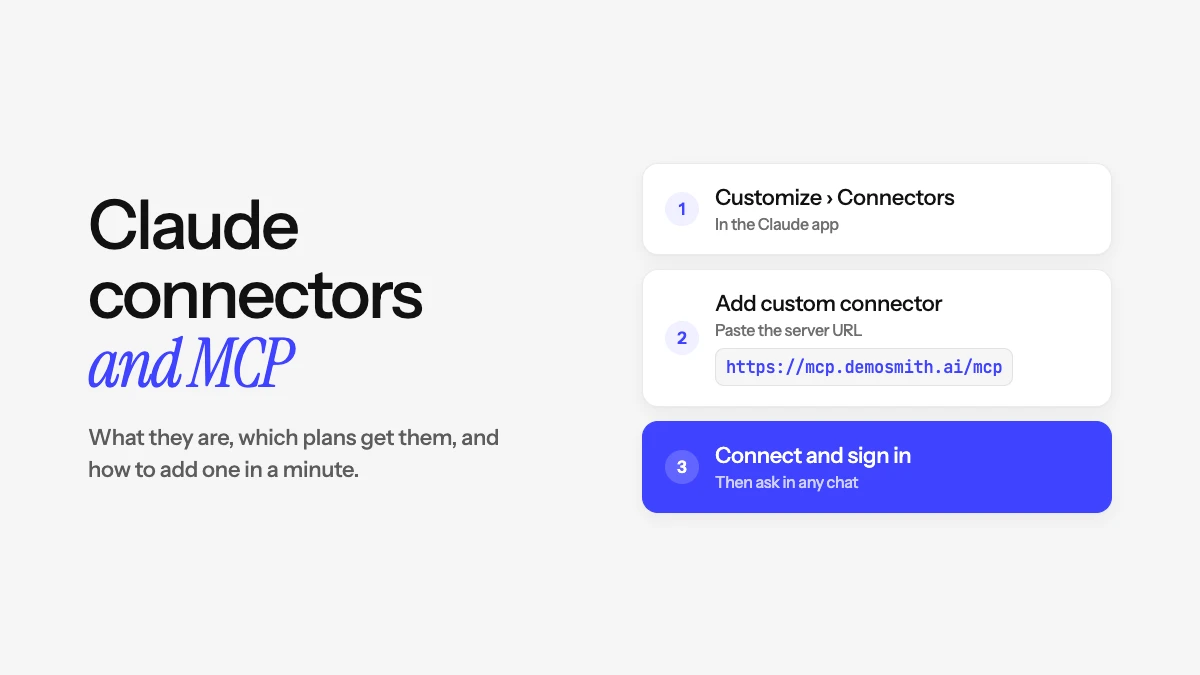
- In Claude, go to Customize > Connectors.
- Click the + button next to Connectors to open the directory.
- Pick a connector and read what it can do. Each one lists whether it only reads or can also make changes.
- Click Connect, then sign in to that app and approve the access it asks for.
On Team and Enterprise plans, an owner adds directory connectors from Organization settings > Connectors > Browse connectors. If you aren’t an owner, open the connector’s page and click Request to ask for it. Requests are on by default for Team plans; on Enterprise, an owner has to switch them on.
How to Add a Custom Connector by URL
Use this for any app that has an MCP server but isn’t in the directory. All you need is the server’s URL, which the app’s docs give you. It usually ends in /mcp.
On Free, Pro, Max or Ultra
- Go to Customize > Connectors.
- Click Add (the + button), then Add custom connector. On some accounts this reads Custom > Web.
- Give it a name and paste the server URL.
- Keep the sign-in settings Claude suggests unless the app’s docs say otherwise, then click Add.
- Click Connect, sign in to the app and approve access.
On Team or Enterprise
An owner goes to Organization settings > Connectors, clicks Add, chooses Custom > Web and enters the name and URL. The connector then shows up for everyone under Customize > Connectors with a Custom label, and each person clicks Connect to sign in as themselves.
How to Use a Connector in a Chat
Once you’ve added a connector, Claude can bring it in when your request fits, so you rarely need to name it. To choose which ones a chat can use, click + in the message box (or type /), open Connectors and switch each one on or off for that conversation.
Claude asks you to approve a tool before using it. Save Always allow for connectors you trust to act without you watching.
How to Add an MCP Server to Claude Code
Claude Code adds remote MCP servers from the terminal. One command does it (our Claude Code, Codex and Cursor MCP guide goes further):
claude mcp add --transport http <name> <server-url>Then type /mcp inside Claude Code and pick the server to sign in. If you sign in to Claude Code with your Claude account, the connectors you added in the Claude app show up there automatically, so you rarely need to add one twice.
Connectors Worth Adding for Marketing and Product Teams
Start with the tools your work already lives in. These are all in the directory:
- Notion, Google Drive and Microsoft 365 for briefs, specs and launch docs, so Claude writes from your real material.
- Slack to pull a thread into a summary or post the update when you’re done.
- Canva and Figma to work from your designs and turn copy into on-brand assets.
- HubSpot for customer and deal context before you write to someone.
- Linear, Atlassian and Asana to see what shipped and what’s next.
- Productboard and Granola for customer feedback and meeting notes.
Text and data cover most of a launch. The gap is usually video: the demo that shows the new feature working. Most teams still record that by hand in a tool like Loom, and our guide to Loom alternatives for product demos covers the other options.
Example: A Custom Connector That Makes Demo Videos
Demosmith isn’t in the directory yet, so it’s a good example of adding a custom connector. It’s an AI demo agent: it opens your product in a real browser, clicks through the flow you describe and returns a finished video with a voiceover and captions.
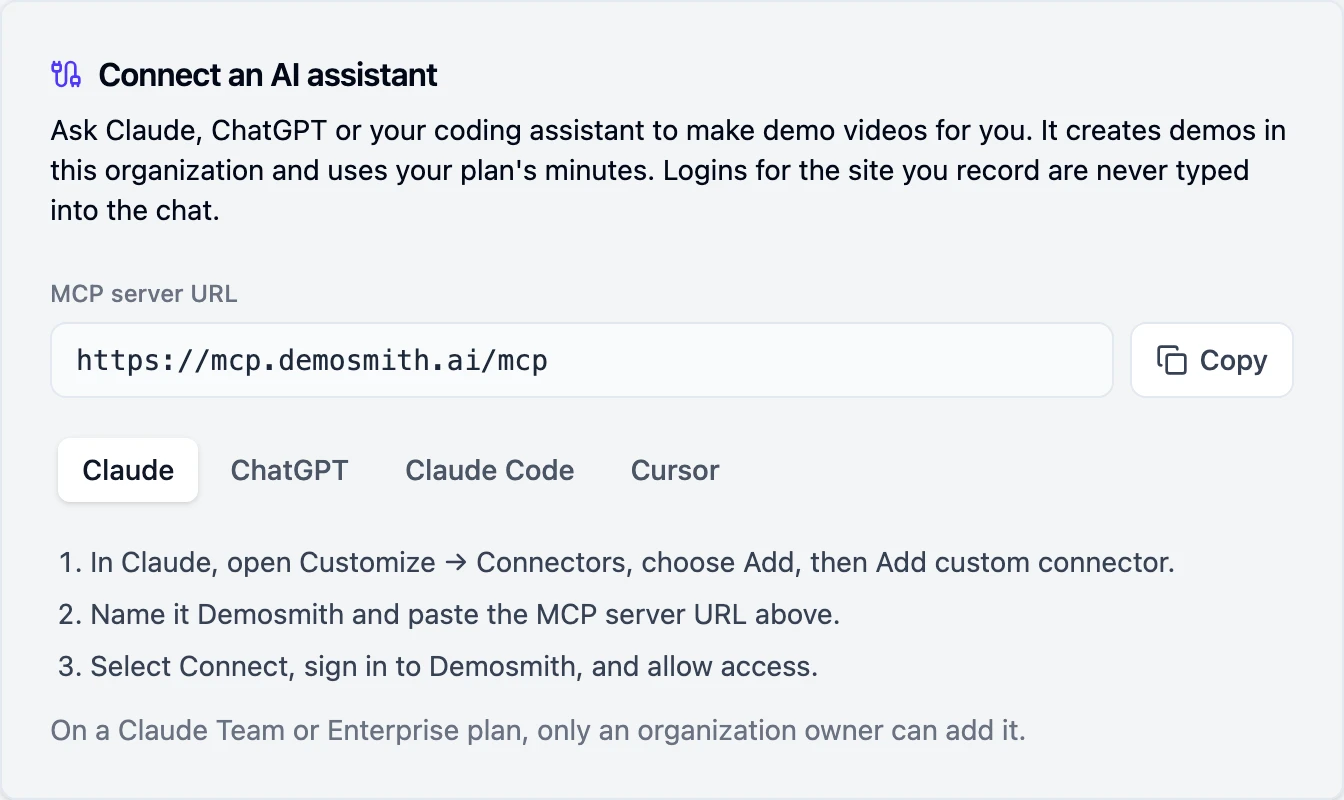
- Add a custom connector named Demosmith with the URL
https://mcp.demosmith.ai/mcp. - Click Connect, sign in to Demosmith and allow access.
- In a chat, ask: "Make a Demosmith demo of app.yourproduct.com showing how a new user creates their first project."
Claude checks the details with you first, and checking costs nothing. Then Demosmith records the flow, and Claude hands you the video link when it’s ready. If the agent hits a sign-in page, you type the login in Demosmith, never in the chat.
Our guide to making a product demo video with Claude has prompts that work well. The same connector works in Claude Code, ChatGPT, Codex and Cursor, and the Demosmith MCP page has the setup for each.
Is a connector the right way to make your demos? For a release-day video from a chat, often yes. For the other ways to make one, see our roundup of AI demo video generators.
How to Use Connectors Safely
A connector can read data and, if it allows writes, change it. A few habits keep that in check:
- Only add servers from companies you trust. Anthropic doesn’t verify custom connectors.
- Read the access screen when you sign in. Deny anything the app doesn’t need.
- Block tools you don’t use. In Customize > Connectors, open a connector and set any tool to Blocked or Needs approval.
- Switch off connectors a chat doesn’t need. Fewer active tools also leaves more room in the conversation.
- Watch for odd behaviour. A tool that suddenly does something new is worth disconnecting until you know why.
Connector Not Working? Common Fixes
- Claude ignores the connector. Check it’s switched on for this chat under + > Connectors.
- You can’t find Add custom connector. On Team and Enterprise only owners can add one, so ask yours, or click Request on a directory connector if your workspace allows it.
- It won’t connect. Claude reaches custom connectors from Anthropic’s cloud, so the server must be on the public internet. One behind a company VPN or firewall won’t connect.
- Sign-in keeps failing. Disconnect it in Customize > Connectors and connect again.
- You need to change its settings. You can edit the name and URL. To change how it signs in, remove it and add it again.
Frequently Asked Questions
Are Claude connectors free?
Yes. Every Claude plan includes connectors, Free too. On Free you can add one custom connector by URL. The app you connect may charge separately, since you sign in with your own account there.
Can I use MCP on the Claude free plan?
Yes. Free users can use directory connectors and add one custom connector, which is a remote MCP server added by URL. Local MCP servers work in Claude Desktop on any plan.
Do Claude connectors work on mobile?
Yes. Connectors you add on the web or in Claude Desktop are available in the Claude apps for iOS and Android the next time you sign in. Adding them on mobile is in beta, so web and desktop are the easier place to set them up.
What is the difference between a Claude connector and an MCP server?
An MCP server is what a company builds so AI apps can use its product. A connector is that server once you add it to Claude. Every remote connector is an MCP server underneath.
Can Claude make videos with a connector?
Yes. Claude can’t make videos on its own, but a connector can. With Demosmith connected, Claude can return a finished, narrated demo video of your product.
Key Takeaways
- A connector is an MCP server you’ve added to Claude. MCP is the standard; the connector is what you use.
- Every plan can use them. The Free plan gets one custom connector, and on Team and Enterprise an owner adds them first.
- Adding one takes a URL. Customize > Connectors, Add custom connector, paste the URL, sign in.
- Connectors can make things too. With Demosmith connected, Claude hands you a finished product demo video.