Why Teams Are Turning to NotebookLM for Product Content
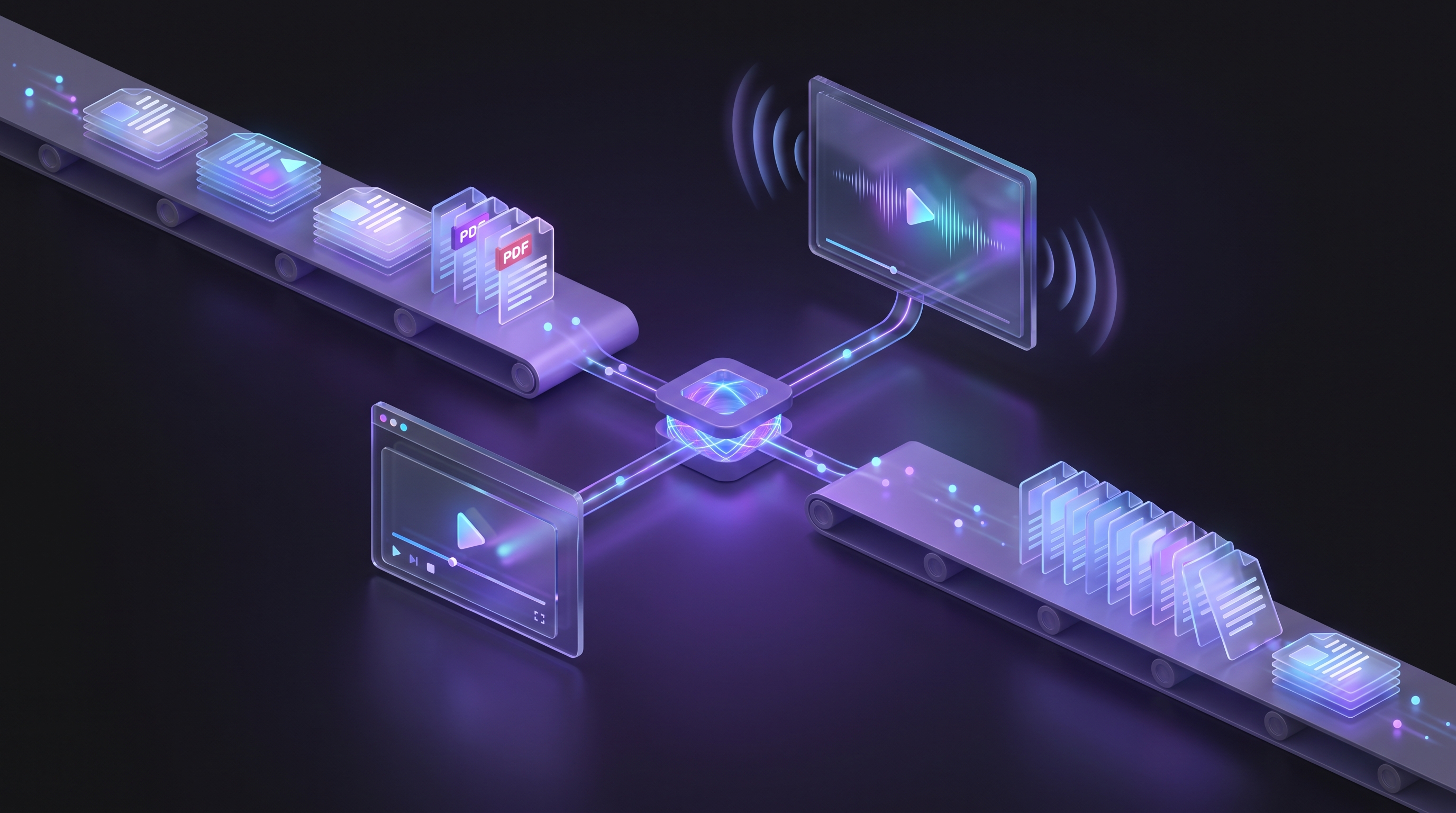
NotebookLM, which Google renamed Gemini Notebook in July 2026, has quietly become the most-used AI tool nobody demos. You feed it your documents and it gives you back podcasts, mind maps, slide decks, and, since 2025, Video Overviews: narrated, slideshow-style videos generated from whatever you loaded. Interest keeps climbing, because for the first time a team can turn a folder of documentation into watchable material without touching an editor.
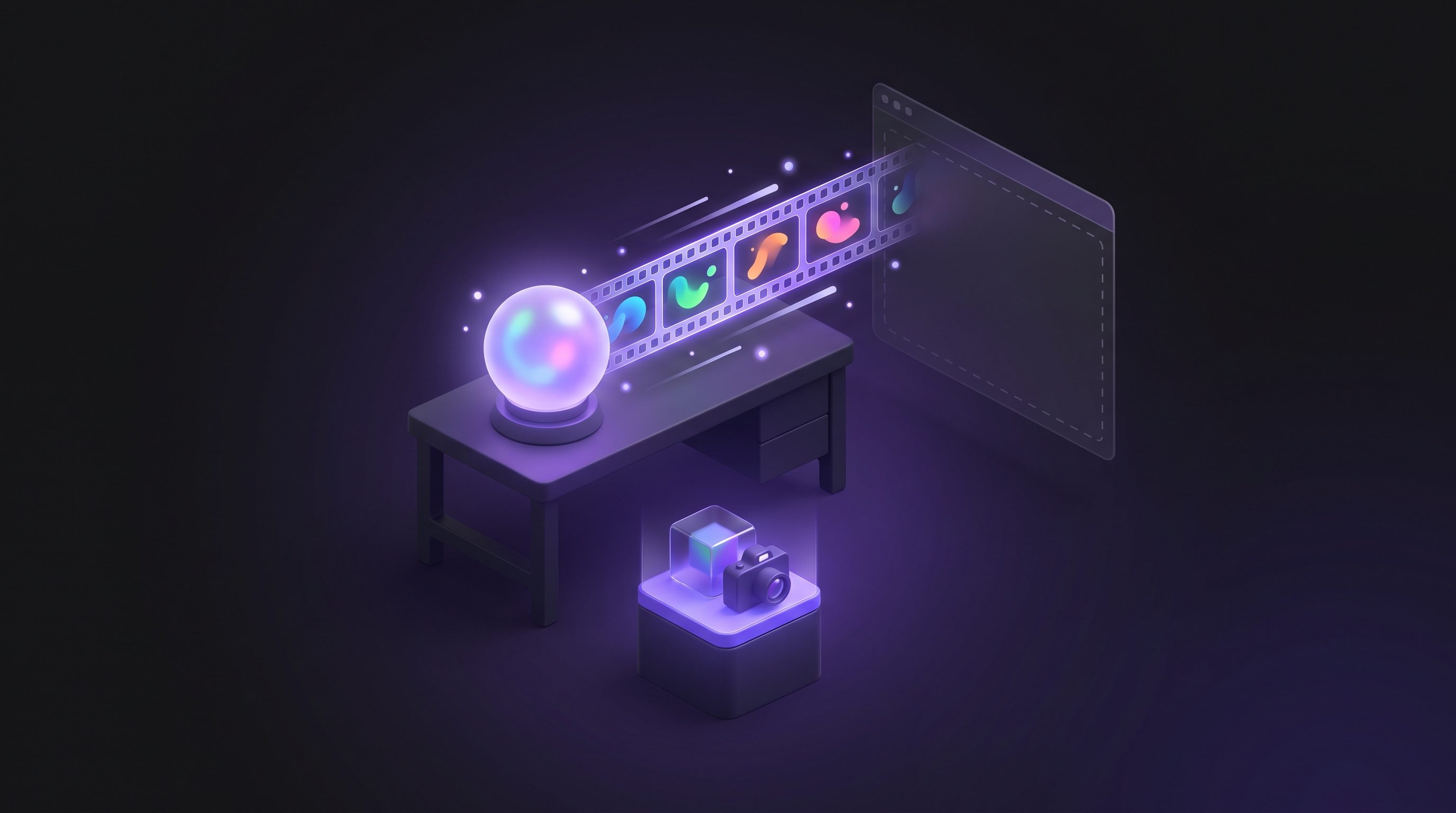
For product teams the appeal is obvious and the limit is structural. A Video Overview is your documents talking. It is genuinely good for onboarding, enablement, and internal training, where a narrated summary beats a wall of text. It is not a product demo, because a demo has to show the product. NotebookLM cannot record screens, cannot drive a browser, and cannot even watch your existing demo footage: URL sources are scraped as text only, and YouTube sources as transcripts only.
This guide covers what NotebookLM does well, where it stops, and the workflow that pairs it with real recorded demos. It is the friendliest matchup in our series, because NotebookLM and our own documentation tool solve opposite halves of the same problem. For the same treatment of other AI tools, see our guides on Veo 3, Claude, and ChatGPT.
What NotebookLM Can (and Can't) Do for Product Demos
Video Overviews
The headline feature. NotebookLM turns a notebook's sources into a narrated video in one of three formats: Explainer, a structured comprehensive overview; Cinematic, a richer storytelling mode; and Short, a roughly 60-second vertical clip. You pick a visual style from a set that includes Classic, Whiteboard, Watercolour, and Anime, set the narration language from more than 80 options, and steer the focus with a prompt. Output arrives as a shareable link or a downloadable file, and generation can take half an hour, so batch your runs.
Sources: what it will and will not read
Each notebook takes up to 50 sources on the free tier, and each source can be up to 500,000 words or 200MB: PDFs, Google Docs, Slides and Sheets, Word files, markdown, images, audio, and pasted text. The two limits that matter for demo work: web URLs are ingested as text only, and YouTube videos as transcripts only, captions required. NotebookLM reads about your product. It never watches it.
Beyond video
The rest of the Studio is worth knowing because it rounds out an enablement kit. Audio Overviews come in four formats, including the two-host Deep Dive and an Interactive mode where you can join and ask the hosts questions. Mind Maps turn sources into branching topic diagrams. The newer outputs include flashcards, quizzes, reports, data tables, infographics, and slide decks you can export as PPTX. Priced access is generous, which is part of the appeal: the free tier carries standard limits, paid Google AI plans raise quotas by multiplier under the compute-based system introduced in September 2026, and Workspace business plans include it with shared team notebooks.
What NotebookLM cannot do
It renders documents, not software. A Video Overview is narration over generated visuals in the style you chose. It cannot record a screen, drive a browser, log in, or show your live interface. There is no editing a Video Overview after generation: you adjust the inputs and regenerate, at another half-hour wait. And on Workspace Enterprise and Education accounts, public link sharing is disabled, which surprises teams the first time they try to send an overview to a customer.
Step 1: Build the Notebook from Real Product Material
Create a notebook per audience, not per product. An onboarding notebook for new customers loads the getting-started guide, the FAQ, and the first-month checklist. A sales-enablement notebook loads the battlecard, the pricing page copy, and the case studies. Fifty sources is room for nearly any single topic.
Garbage in, narrated garbage out. The overview will only be as current and as accurate as your documents, so this step doubles as an audit: if the source set is stale, the video will confidently repeat the staleness.
Step 2: Generate and Steer the Video Overview
Pick the format for the job: Explainer for training, Short for a social or Slack-friendly summary, Cinematic when it needs to hold attention. Choose a visual style consistent with how your team presents, set the narration language, and use the steering prompt to focus on one topic rather than the whole notebook.
Then wait. Generation runs thirty minutes and more on heavy notebooks, and there is no editing afterwards, so run two or three variants with different steering prompts rather than polishing one. Treat the first attempts as drafts, because Google's own warning that voices and visuals may contain glitches is not boilerplate.
Step 3: Use the Video Where Document Video Wins
Video Overviews earn their keep in the places text currently loses: onboarding sequences, enablement sessions, internal training, and exec summaries of dense material. Share the link inside your workspace or download the file for your LMS. Rivian's creative teams and Spotify's Wrapped podcast show the format working at real companies.
Where it does not win: anywhere the viewer expects to see the product. Do not put a Video Overview on a pricing page or in a sales follow-up and call it a demo. A prospect who asks "can I see how it works" is asking for footage, and a narrated summary of your docs is an answer to a different question.
Step 4: Pair It with Recorded Product Demos
The complement is a recorded demo of the real interface, and there are two ways to get one. The manual way is a screen recorder and an afternoon. The automated way is an AI demo agent: paste your product URL, describe the flow, and the agent returns finished footage of the live product, with the interesting wrinkle that it also produces documentation from the same run.
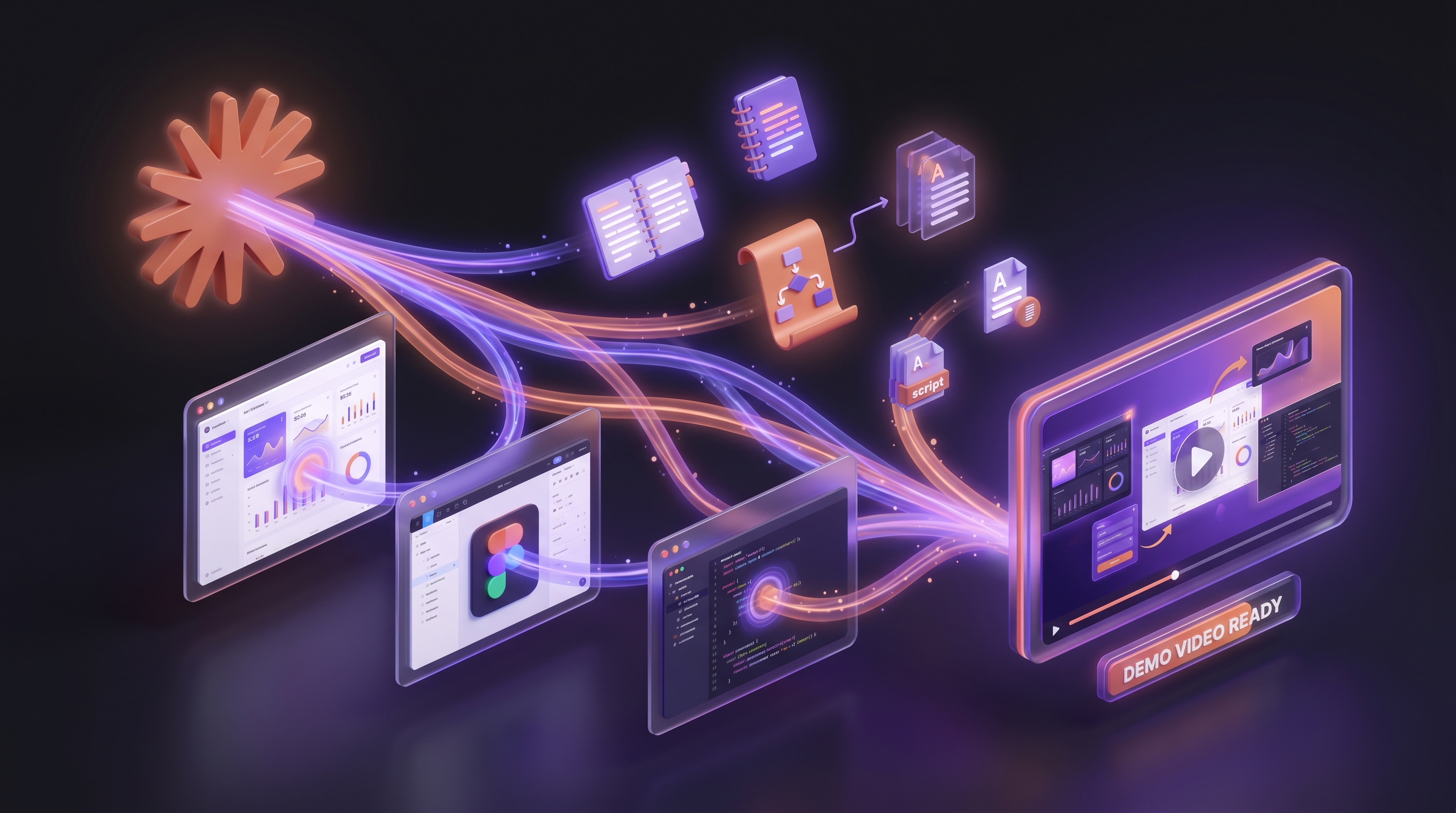
That closes the loop, and it is the reason this matchup is friendly. Demosmith's Docusmith export turns a recorded demo into Markdown, HTML, or PDF documentation. NotebookLM turns documentation into video. Run the loop and each tool feeds the other: the demo produces the docs, the docs produce the explainer, the explainer sends viewers back to the demo. We cover the export side in how to convert a Demosmith demo into a document.
When to Use NotebookLM vs a Purpose-Built Demo Tool
Use NotebookLM when the source of truth is writing: policies, manuals, training material, enablement docs, research. Use a demo tool when the source of truth is the product: walkthroughs, feature launches, sales follow-ups, help content that shows the screen. If a stakeholder would answer "did you see the interface?" with yes, it is a demo-tool job.
For a map of that second category, our roundup of the best AI demo video generators covers the field tool by tool.
The Combined Workflow: NotebookLM Explains, Demosmith Demonstrates
The two tools run in opposite directions and meet in the middle. Demosmith records your live product from a URL and returns the demo video, plus the interactive demo and the documentation from the same run. NotebookLM takes documentation and returns narrated video for the people who would rather watch than read.
In practice: ship the feature, run the demo once, publish the video for prospects, export the docs for the help centre, and load those docs into a NotebookLM notebook to generate the internal training version. When the interface changes, you re-run the demo, the docs refresh, and the notebook regenerates on the new sources. Nothing goes stale alone. You can see agent-recorded demos on the demo catalog.
NotebookLM vs AI Demo Agent: Side by Side
| Capability | NotebookLM (Gemini Notebook) | AI Demo Agent (Demosmith) |
|---|---|---|
| Source material | Documents you upload | Your live product URL |
| Shows your real interface | No, generated slides and narration | Yes, the actual screens |
| Narration | 80+ languages | AI voiceover in 31 languages |
| Output | Hosted video link, downloadable file | MP4, interactive demo, docs |
| Editing after generation | None, regenerate from sources | Re-run the flow in minutes |
| Generation time | 30 minutes and up | Under 10 minutes on average |
| Cost | Free tier, paid plans raise limits | From $40 per month |
| Best for | Training and enablement from docs | Product demo videos at volume |
Conclusion: NotebookLM Is a Strong Explainer, Not a Demonstrator
NotebookLM does something no demo tool does: it turns the documents you already maintain into watchable, listenable material, in dozens of languages, at a price that starts at free. For onboarding, enablement, and training, it removes the excuse of the 40-page manual. The rename to Gemini Notebook has not changed what it is.
What it cannot do is show your product. Its videos are your documents talking, generated and narrated, with no screen ever recorded. The teams that get the most from it treat it as the explainer layer and keep a real recorded demo alongside, ideally produced by something that also writes the documentation the notebook will eat next.
NotebookLM turns what you wrote into video. It cannot turn your product into video. One tool reads, the other records.
Key Takeaways
- NotebookLM, renamed Gemini Notebook in July 2026, generates narrated Video Overviews from documents in three formats: Explainer, Cinematic, and a roughly 60-second vertical Short.
- It works from documents only. URL sources are text-only and YouTube sources transcript-only, so it can never show or even watch your product's interface.
- Generation takes 30 minutes and up, with no editing afterwards. Run steering variants instead of polishing one output.
- Best uses: onboarding, enablement, internal training, and summaries of dense documentation. Not: pricing pages, sales follow-ups, or anything a viewer expects to be a demo.
- The natural pair is a recorded demo that also produces documentation. Demosmith's Docusmith export writes the docs; NotebookLM turns docs back into video; each feeds the other.
- The free tier carries up to 50 sources per notebook, and paid Google AI plans raise quotas by multiplier under the September 2026 compute-based limits.