The Short Answer
The best LinkedIn video size for the feed is 1080 × 1350 pixels, a 4:5 portrait shape. Square 1080 × 1080 is the safe second choice, and 1920 × 1080 landscape suits screen recordings and webinars. Upload an MP4 at 30 frames per second. Posts can run up to 15 minutes and 5 GB. Video ads can run up to 30 minutes and 500 MB.
That covers most uploads. The rest of this guide is for when a number in another guide does not match. LinkedIn publishes its video rules on five different pages, and they do not all agree. We checked each one on November 4, 2026, and below we say which rule applies to which kind of video.
We have a reason to care. We make Demosmith, whose AI demo agent turns a link to your product into demo videos and short clips for social, and LinkedIn is where a lot of those clips end up. If the export is wrong, the post looks wrong. Rather skip the export settings entirely? The last section shows how Demosmith makes LinkedIn-ready clips of your product for you.
LinkedIn Video Specs for Posts, Career Pages and Ads
LinkedIn has three sets of video rules. Posts are anything you share from the share box: on your profile, in a Group or on your Company Page. Career Pages have their own video slot on the Life and What We Do tabs. Video ads follow the Campaign Manager spec.
| Spec | Posts (profile, Page, Group) | Career Page video | Video ads |
|---|---|---|---|
| Maximum file size | 5 GB | 5 GB | 500 MB |
| Minimum file size | 75 KB | 75 KB | 75 KB |
| Maximum length | 15 minutes | 10 minutes | 30 minutes |
| Minimum length | 3 seconds (desktop), 2 seconds (mobile app) | 3 seconds | 3 seconds |
| Resolution | 256 × 144 to 4096 × 2304 | 256 × 144 to 4096 × 2304 | 360 to 1920 pixels on each side |
| Aspect ratio | 1:2.4 to 2.4:1 | 1:2.4 to 2.4:1 | 9:16 to 16:9 |
| Frame rate | 10 to 60 fps | 10 to 60 fps | 30 fps recommended |
| Bit rate | 192 Kbps to 30 Mbps | 192 Kbps to 30 Mbps | Not stated |
| File types | MP4, MOV, AVI, WebM, MKV, WMV and others | MP4, WebM, MKV and others. No MOV or AVI | MP4 only |
| Audio | Not stated | Not stated | AAC or MPEG4, under 64 kHz |
| Captions | Auto captions in 10 languages, or upload a caption file | Not stated | Optional |
| Thumbnail | Custom upload | Not stated | JPG or PNG, up to 2 MB, same shape as the video |
Sources, all checked on November 4, 2026: LinkedIn Help's Share videos on LinkedIn and Video sharing troubleshooting for posts, Video specifications for your LinkedIn Pages and Career Pages for the Career Page column, and the Video Ads specs from LinkedIn Marketing Solutions for ads.
Which LinkedIn Video Size to Use
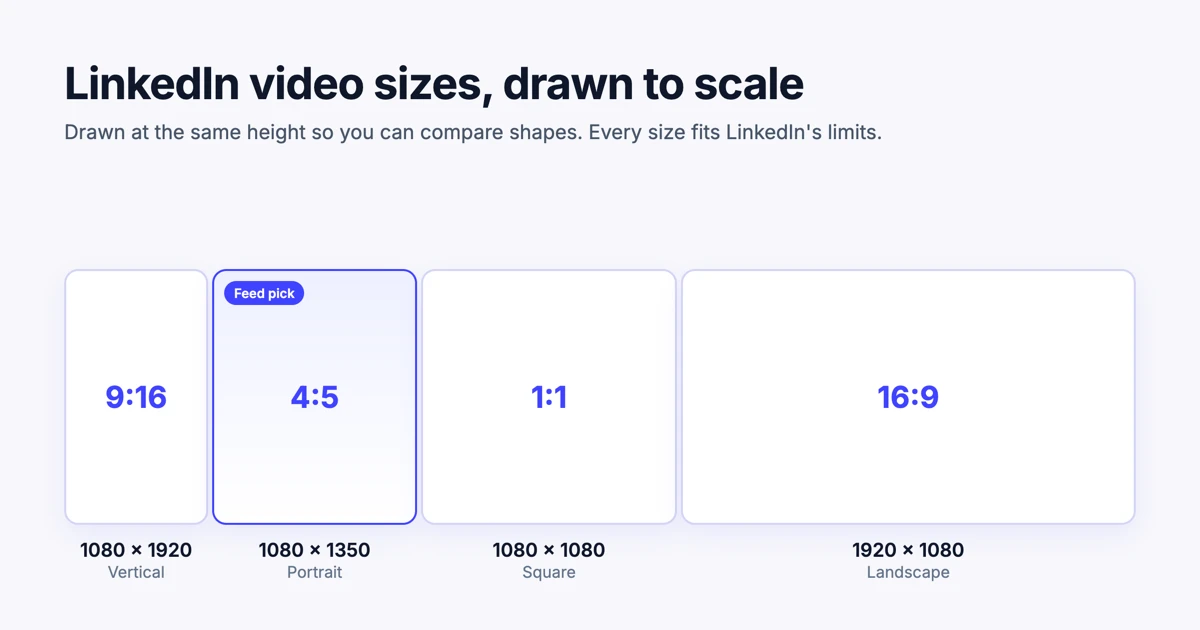
Any shape between 1:2.4 and 2.4:1 will upload. The question is which one looks best where your viewers watch. Four shapes cover almost every case:
| Shape | Pixels | Use it for |
|---|---|---|
| 4:5 portrait | 1080 × 1350 | Feed posts made for phones. LinkedIn lists it first among its recommended ad shapes. |
| 1:1 square | 1080 × 1080 | Posts that need to look right on desktop and phone, and clips with text on screen. |
| 9:16 vertical | 1080 × 1920 | Video you also post to Reels, TikTok or Shorts. Our social media video sizes guide covers those apps. |
| 16:9 landscape | 1920 × 1080 | Screen recordings, webinars and talks, and viewers on desktop. |
Why does 4:5 win in the feed? Height. At the same width, a 4:5 video stands 25 percent taller than a square one and more than twice as tall as landscape. On a phone, that is more of the screen showing your video while someone scrolls.
Vertical 9:16 works too. LinkedIn's mobile app is rolling out a full-screen video player, not yet available to every member, that plays any video you post. LinkedIn warns that this player may crop a video at the sides, top and bottom to fit the viewer's phone, so keep text and logos away from the edges.
Screen recordings and product demos
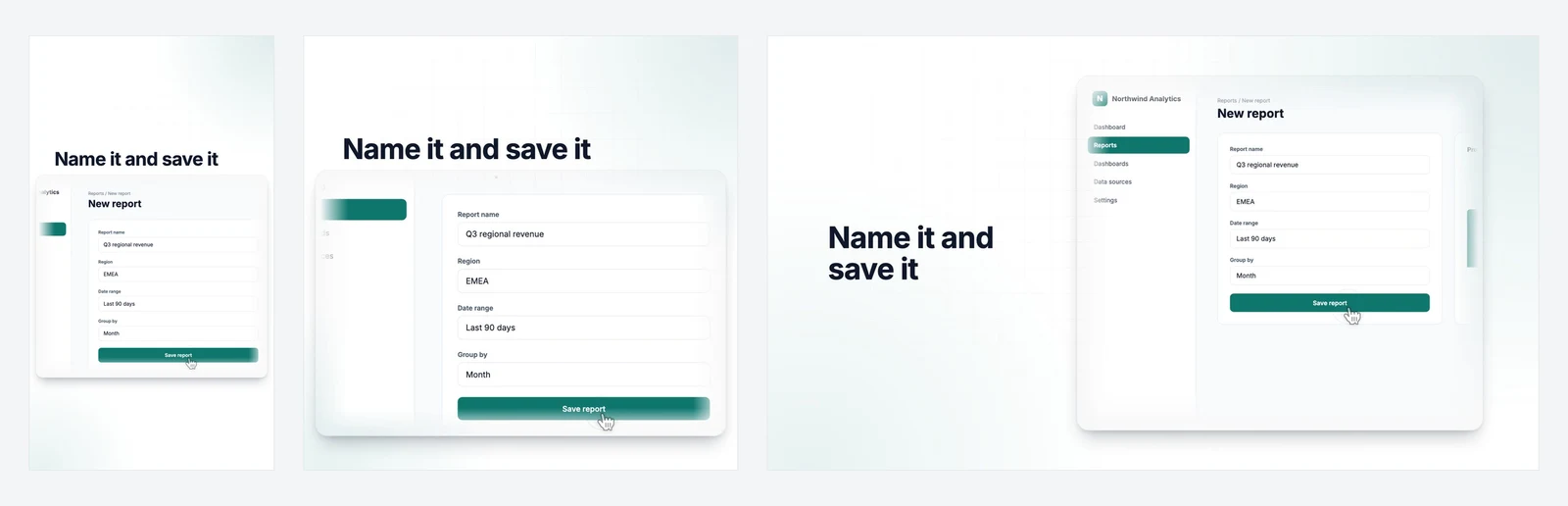
Software screens are wide. Squeeze a 16:9 screen recording into a 4:5 frame and the interface text gets too small to read on a phone. You have two good options: post it as 16:9 and accept a smaller video in the feed, or rebuild the shot for the taller frame. Zoom in on the part of the screen that matters and put a short headline above it.
Rebuilding beats cropping. Cropping a 16:9 screen to 4:5 throws away more than half of it. A rebuilt shot keeps the part your viewer needs and makes it big enough to read.
Where LinkedIn's Own Numbers Disagree
If you have seen two different answers to the same question, this is usually why.
Is the limit 10 minutes or 15?
The answer depends on where the video goes. LinkedIn's posting help says 15 minutes for anything shared from the share box, which includes Company Page posts. The 10-minute limit comes from the Career Pages spec, which covers the video slot on a Page's Life and What We Do tabs. Several guides apply that 10-minute figure to every Company Page post. It only applies to that slot.
Can you upload MOV files?
For posts, yes. LinkedIn's troubleshooting page lists MOV as supported on desktop, iOS and Android. The Career Pages spec says it no longer supports AVI, QuickTime or MOV, and ads accept only MP4. Export MP4 and the question goes away.
Are video ads 30 minutes or 3 minutes 30?
The current ad spec allows 3 seconds to 30 minutes and up to 500 MB. Some older guides still quote 3 minutes 30 seconds. Use the current spec.
Is 2560 × 1440 or 4K better?
Posts accept files up to 4096 × 2304, so a 1440p or 4K file will upload. Ads cap each side at 1920 pixels, so the same file is too big to run as an ad. LinkedIn does not say it plays posts above 1080p, so a bigger file mostly means a longer upload. 1080 pixels on the short side is the safe choice for every placement.
Most "LinkedIn video specs" disagreements come from mixing up three sets of rules: posts, Career Pages and ads.
Captions, Safe Zones and Thumbnails
A video can meet every spec and still look careless in the feed. These three details are where it usually goes wrong.
- Captions. LinkedIn can add auto captions in 10 languages, or you can upload a caption file. Review auto captions before you post, because they often trip on product names. Some viewers scroll with the sound off, so the video should make sense without it.
- Safe zones. LinkedIn asks you to keep the edges of the frame free of key elements, text and logos, so the app's buttons do not cover them. It does not give pixel values. Our rule of thumb: keep every word inside the middle 80 percent of the frame, and leave extra room at the top and bottom of a 9:16 video.
- Thumbnails. On a post, you can upload a custom thumbnail after the video uploads. For ads, LinkedIn wants a JPG or PNG up to 2 MB, in the same shape as the video. Pick a frame that shows what the video is about, not a blurry transition.
LinkedIn sets limits on length but gives no target for posts. Our view: a product clip, like a feature announcement video, rarely needs more than 30 to 60 seconds. Save the long version for your website or YouTube and link to it.
Export Settings That Upload Cleanly
These settings sit inside every limit above, so one export works for posts and ads:
| Setting | Use |
|---|---|
| File | MP4 |
| Video codec | H.264 |
| Audio | AAC, 48 kHz |
| Frame rate | 30 fps |
| Size | 1080 × 1350, 1080 × 1080, 1080 × 1920 or 1920 × 1080 |
| Bit rate | 8 to 12 Mbps at 1080p, well under LinkedIn's 30 Mbps ceiling |
Most editors have a preset close to this. Pick the 1080p H.264 preset, set the frame size to the shape you want, and check that the frame rate stays at 30. Demosmith's social clips already come out this way: MP4 files at 30 frames per second, at 1080 × 1080, 1080 × 1920 and 1920 × 1080.
Make LinkedIn Video of Your Product With Demosmith
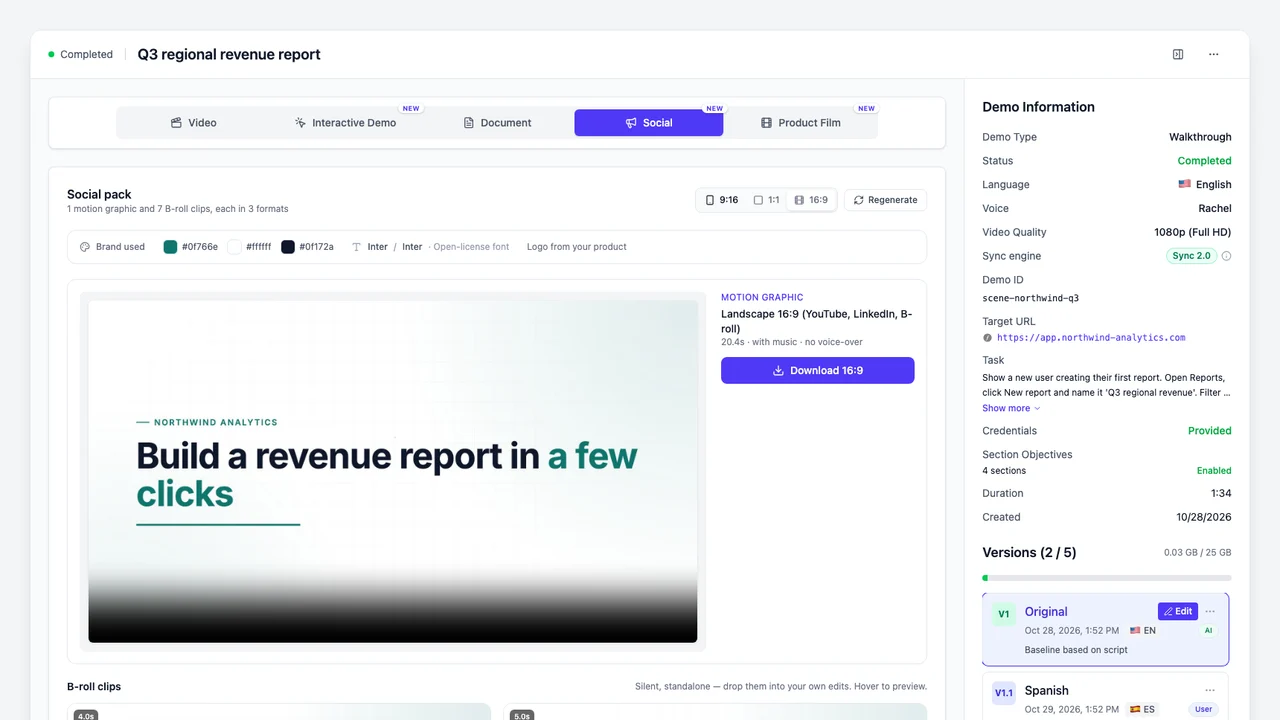
Every rule in this guide gets easier when you make the video for LinkedIn from the start. If the video is about your software, you do not have to record it, edit it or set any of the export settings above. Demosmith opens your product from a link, clicks through the flow you describe and records a narrated product demo video. From any finished demo, it makes a social pack: a short motion graphic with music and a set of silent B-roll clips of your product, in your brand colours and fonts, each in 9:16, 1:1 and 16:9.
Set against the advice above, a social pack covers each point:
| LinkedIn advice | What a Demosmith social pack does |
|---|---|
| Use a shape made for the feed | Comes in square 1:1 for the feed, vertical 9:16 for the full-screen player and landscape 16:9. |
| Export MP4 at 30 fps | Every clip is an MP4 at 30 frames per second, at 1080 × 1080, 1080 × 1920 or 1920 × 1080. |
| Make it work with the sound off | The motion graphic tells its story in moving text over music, with no voiceover. The B-roll clips are silent. |
| Keep text away from the edges | Each shape gets its own layout instead of a crop, so headlines and buttons stay where people can read them. |
| Hook early, end with an ask | The motion graphic opens on a hook, shows your product doing its job and ends on a call to action. |
| Keep it short | The motion graphic runs 15 to 30 seconds, and each B-roll clip shows one moment in a few seconds. |
To make one, open a finished demo in Demosmith, choose the Social tab, pick where your brand comes from and click Generate social pack. Demosmith reads your colours, fonts and logo from your product, or uses your saved Brand Kit.
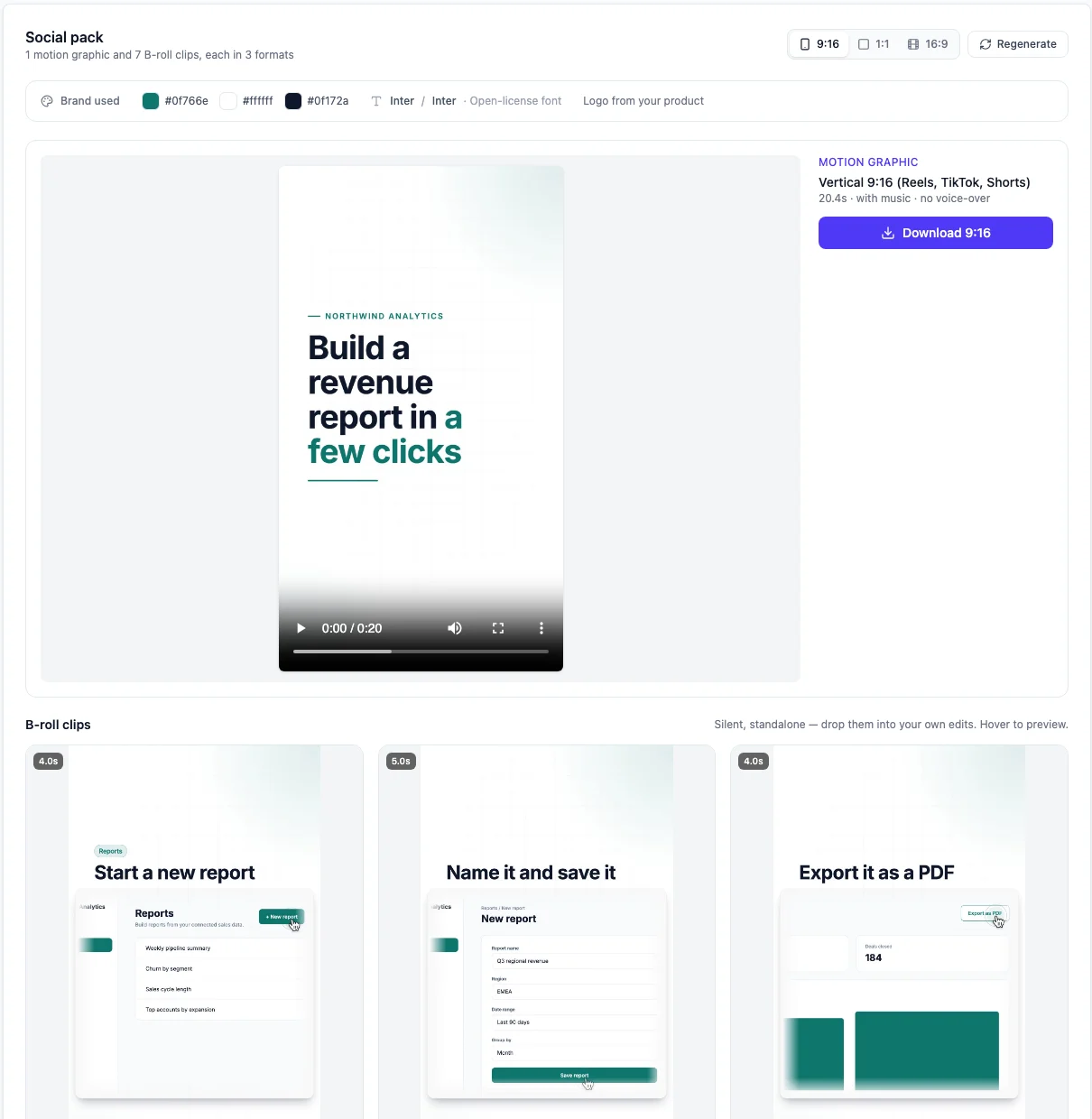
For the LinkedIn feed, post the square version. It looks right on desktop and phone, and each clip places its text for that shape. Use the vertical version for LinkedIn's full-screen player and for Reels, TikTok and Shorts, and the landscape version for YouTube or your website. Social packs come with every paid plan, starting with Starter at $40 a month, and each pack uses 1 AI minute.
Our launch post on social clips and product films shows a full pack, and the social clips page shows a week of LinkedIn posts made from one. Prefer to record your own screen? Our guide to Loom alternatives for product demos compares the main screen recorders, and the export settings above apply to any of them.
Conclusion
Upload an MP4 at 1080 × 1350, 30 fps, with captions and nothing near the edges. That covers almost every LinkedIn post.
Use 4:5 for posts made for phones, square when people watch on desktop too, and 16:9 for screen recordings and webinars. When another guide quotes a different limit, check whether it is talking about posts, Career Pages or ads. Ask that one question and most of the contradictions disappear.
If you post about your product on LinkedIn every week, the fastest route is to skip the export settings altogether: make a demo in Demosmith and post the square clips from its social pack. For the wider market of tools that make product video for you, see the best AI demo video generators in 2026.
Key Takeaways
- The best LinkedIn video size for the feed is 1080 × 1350 (4:5). Square 1080 × 1080 is the safe alternative.
- Posts allow up to 15 minutes and 5 GB. Ads allow up to 30 minutes and 500 MB.
- The 10-minute limit applies to the Career Page video slot, not to Company Page posts.
- Export MP4 with H.264 video and AAC audio at 30 fps. MOV works for posts but not for Career Pages or ads.
- Ads cap each side at 1920 pixels, so 1440p and 4K files only work as posts.
- Keep text inside the middle of the frame and add captions, so the video works with the sound off.
- Demosmith makes LinkedIn-ready clips of your product from a link: square, vertical and landscape MP4s at 30 fps, in your brand, that work with the sound off.
Want LinkedIn clips of your own product without recording anything? Start with Demosmith, make a demo, then turn it into a social pack.