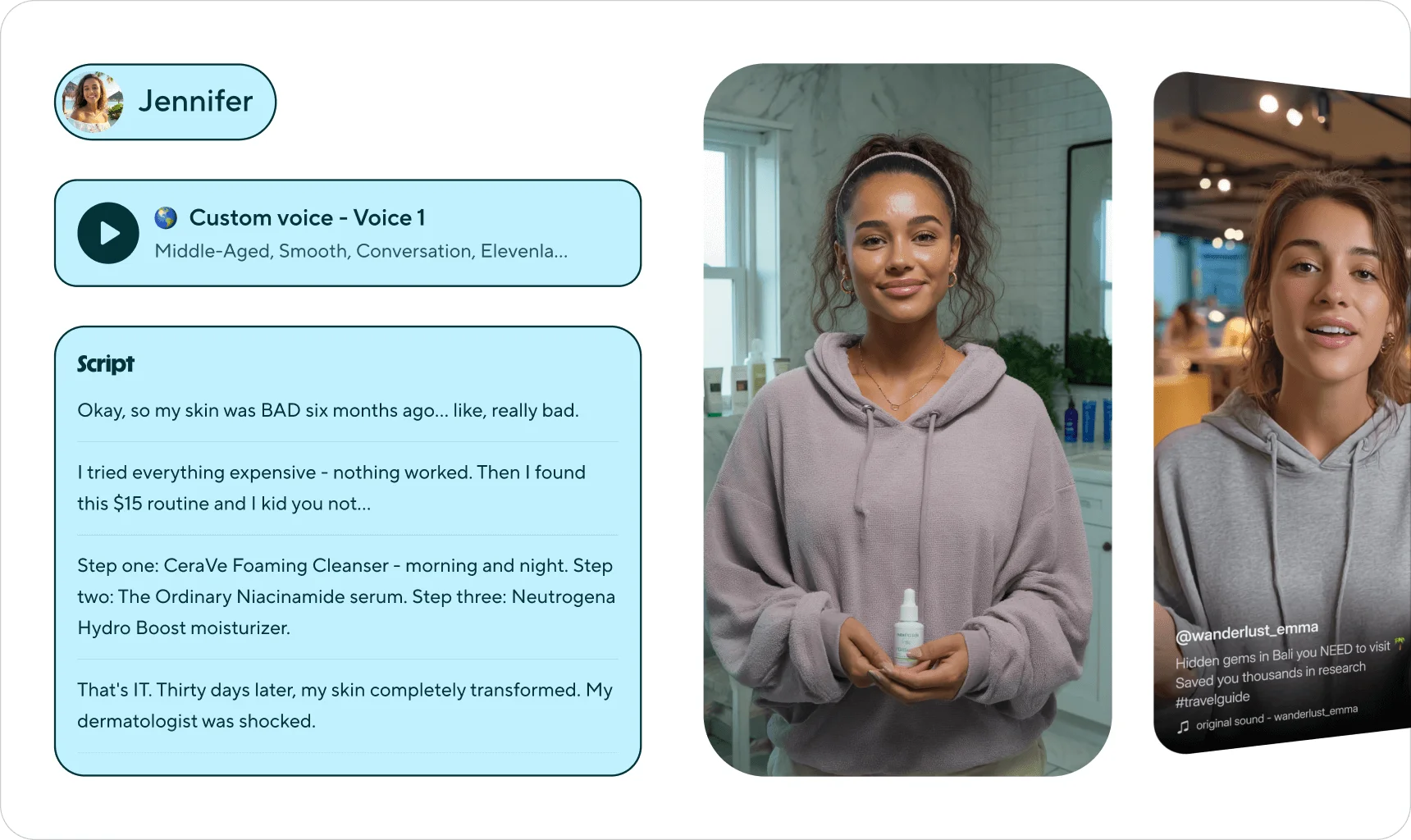
You have one product demo in English, and buyers in Germany, Brazil and Japan who would rather watch it in their own language. AI voiceover makes the translation part cheap: tools can turn one video into ten languages in an afternoon.
The catch is easy to miss until a customer points it out. Dubbing translates the voice. It does not translate the product.
A product demo is mostly screen. If the narration says "Klicken Sie auf Berichte" while the screen still shows a button labelled "Reports", the viewer has to translate in their head. That is the one job you were trying to take off their hands. This guide covers the four ways to translate a product demo video, how to choose between them, and the five places AI translation breaks.
We make Demosmith, an AI demo agent that records demos in 31 languages, so we have a view. We also say where other tools are the better pick, and every price below comes from the vendor's own site, checked on October 19, 2026.
How to Translate a Product Demo Video: The Short Answer
Pick one of four routes for each video, then run the same checks on every language:
- Subtitles only. Translate the captions and keep the original voice. Cheapest, and fine for social clips and help articles.
- Dub the existing recording. AI transcribes the narration, translates it and generates a new voice over the same footage. Fast, but the product's screens stay in the original language.
- Dub and replace on-screen text. The same as route 2, plus image editing that swaps visible text frame by frame. Better for slides and overlays, approximate for a live product interface.
- Record the demo again in the target language. Show the localised version of your product and write the narration in that language. With an AI demo agent such as Demosmith, this is a new run, not a new shoot.
Whichever route you choose, run three checks. Keep a list of product terms that must not be translated. Have someone who speaks the language review the result. Decide in advance how each version gets updated when the product changes.
Why Dubbing Translates the Voice, Not the Product
Most AI video translators were built for talking-head video: a person speaking to camera, a course, a YouTube channel. For that content, translated speech plus lip sync is the whole job. A product demo is different, because the important information is on the screen. Menu names, button labels, empty states, error messages and the data in the table are all part of what the viewer is learning.
Dub a demo and the viewer gets two languages at once: the voice in theirs, the interface in yours. Learning designers call this the split-attention problem. A practitioner on Reddit who localises training video put it more bluntly: translate the narration into Japanese while the recording still shows an English interface, and "the voice says to click one thing. The learner sees another."
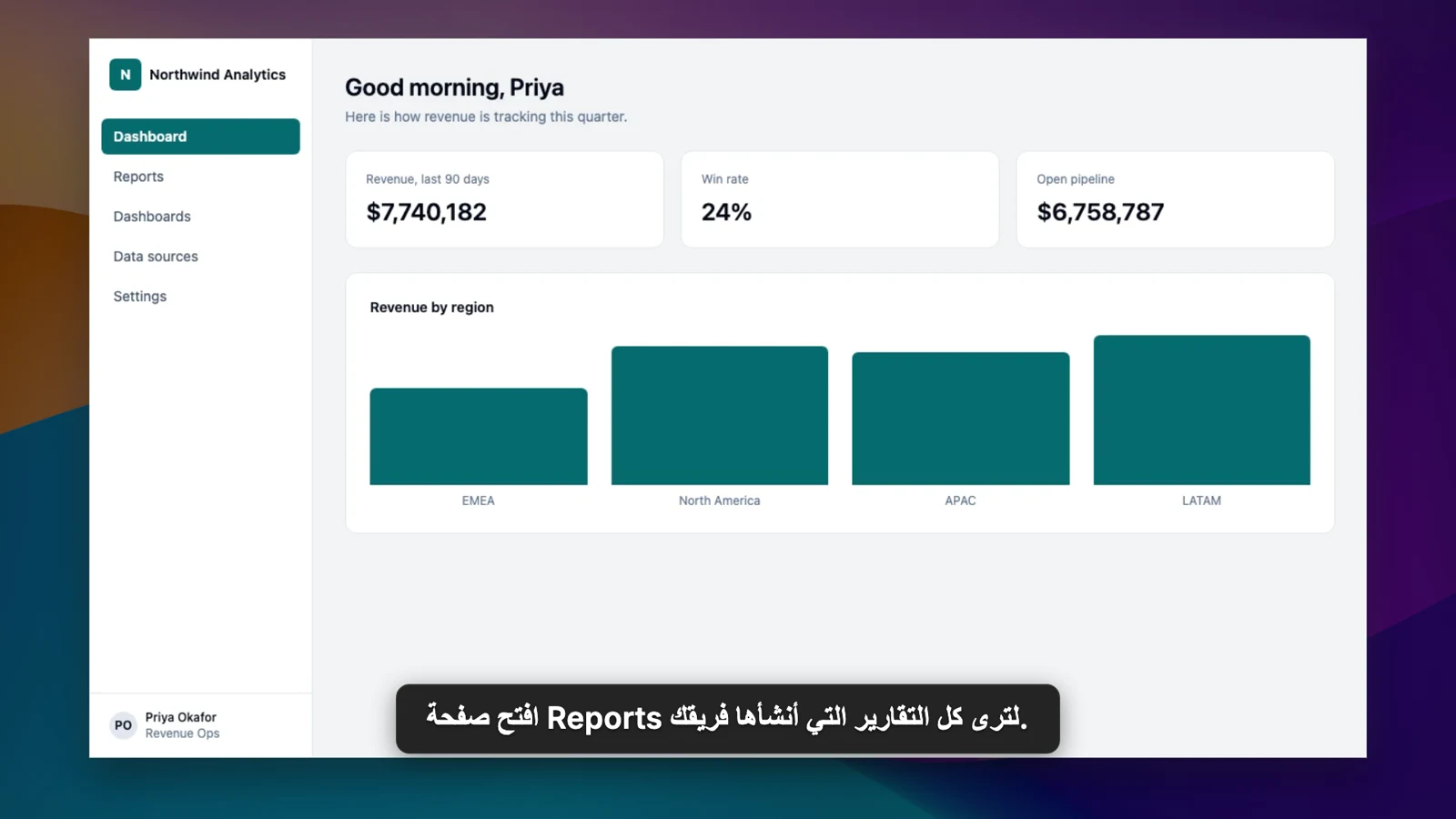
That does not make dubbing wrong. For many videos it is the sensible choice. It means you should decide which videos need the product itself in the viewer's language, rather than finding out from a confused customer.
Four Ways to Translate a Product Demo Video
1. Subtitles only
Translate the captions and leave everything else alone. Most video tools and every major video platform can do this, and an SRT file per language is enough for many players. It costs almost nothing and keeps the original speaker's voice.
It suits short social clips, which most people watch muted anyway, and help-centre videos where the viewer can pause. It struggles with hands-on walkthroughs, where reading captions and following the cursor at the same time is hard work.
2. Dub the existing recording
This is what most AI video translators do. You upload the finished video, the tool transcribes the narration, translates it, generates a new voice (often a clone of the original speaker) and lines it up with the footage. Some add lip sync for any face on screen.
- HeyGen is the best known. It translates into 175 languages and dialects on paid plans, lets you proofread the translated script and keep a brand glossary, and lip-syncs the speaker. Creator costs $29 a month ($24 billed yearly), and the free plan allows 3 videos a month.
- Rask AI dubs into 135+ languages with voice cloning, a line-by-line editor for the transcript and timing, and lip sync from Creator Pro. Creator is $39 a month for 25 minutes; Creator Pro is $99 for 100 minutes.
- ElevenLabs is the name most teams know for AI voices. Its Dubbing Studio starts on the $6 Starter plan and is billed in credits per minute of video.
Dubbing keeps your edit intact: the cuts, zooms and pacing stay the same in every language. The trade-off is the screen, which stays in the source language, and timing. German and French often run longer than English, so the new narration either gets squeezed or drifts out of step with the clicks.
3. Dub and replace on-screen text
A newer group of tools adds image editing on top of dubbing. They detect the text visible in each frame, translate it and paint the translation over the original.
- Vozo calls this Visual Translate and sells it alongside dubbing into 165 languages. Creator is $29 a month for about 50 dubbing minutes and 15 visual-translate minutes.
- Rask AI translates text in the frame (slides, captions, charts) on its higher plans, at three minutes of allowance per minute of video.
- Clueso, which turns screen recordings into polished videos, translates the voiceover, captions and on-screen text into 150+ languages.
This works well for slides, title cards and callouts you added in editing. On a live product interface it is approximate, because the tool edits pixels rather than switching the product's language. Dense tables, small labels, hover states and text that changes as the cursor moves are where it shows. Check every frame that matters.
4. Record the demo again in the target language
The most faithful route is to show the version of your product that a German customer actually sees, with narration written in German rather than translated into it. If your product supports other languages, that version already exists: a /de/ URL, a language setting, or a test account set to German.
Doing this by hand means recording every language yourself, which is why few teams bother. An AI demo agent changes the cost.
With Demosmith you describe the flow once, choose the demo language and point the agent at the localised version of your product. It opens the product in a cloud browser, clicks through the flow and returns a narrated, captioned video. The script is written in the chosen language from the start, so it reads like German rather than English with German words.
Dubbing changes what the viewer hears. Recording in the target language changes what they see. For a product demo, the second one usually matters more.
Two caveats. The screen can only be as localised as your product: if the app has no German version, the interface stays in English whatever tool you use. And a new recording means new edits, so you have to redo any manual polish you added to the original.
How to Translate a Product Demo Video Step by Step
Step 1: Decide which videos and languages matter
Start with where your pipeline and your customers are, not with how many languages a tool supports. Two or three languages with real buyers behind them beat thirty that nobody reviews. Our guide to multilingual product demos covers how to prioritise languages by tier.
Step 2: Write a do-not-translate list
Product names, feature names, plan names and UI labels need consistent handling. If the button in your German interface says "Berichte", the narration should say "Berichte". If your product is English-only, the narration should keep "Reports" so it matches the screen. Put these decisions in a short glossary before you generate anything.
HeyGen, Rask and Vozo let you save one in the tool; elsewhere, add it to your script or prompt.
Step 3: Choose a route for each video
Match the route to the video's job. The table below gives a starting point.
| Video | Route | Why |
|---|---|---|
| Social clip or teaser | Subtitles | Mostly watched muted; speed and cost matter more than the screen |
| Founder or sales talking-head video | Dub with lip sync | The face is the content; HeyGen and Rask are built for this |
| Slide-based explainer | Dub and replace on-screen text | Slides and titles translate cleanly as images |
| Homepage or sales demo of the product | Record again in the target language | Buyers judge the product by what they see on screen |
| Onboarding or how-to walkthrough | Record again in the target language | Viewers copy the clicks, so labels have to match their screen |
| Internal training on an English-only tool | Dub | The tool's interface is English for everyone anyway |
Step 4: Generate the translated versions
Keep the source short and literal. Short sentences, no idioms and no jokes that only work in English all translate better. Leave some slack in the source script too, because the longer languages will need it.
Step 5: Review in proportion to risk
AI makes generation cheap. Review stays expensive, because it needs someone who reads the language and knows the product.
So tier it. Compliance and contractual content needs full native review in every language. A product walkthrough for your biggest market deserves a careful watch by a native speaker. A video for a small market can go out with a spot check and a feedback link.
Step 6: Publish each language and record its version
Give each language its own link or embed, swap it into the right pages and email sequences, and note which product version each video shows. That note turns the next update into a quick check instead of an audit.
Five Places AI Translation Breaks
| Problem | What goes wrong | The fix |
|---|---|---|
| Interface text | The voice and the screen use different languages | Record the localised product, or replace on-screen text and check every frame |
| Timing | Longer languages get squeezed or drift away from the clicks | Leave pauses in the source; prefer tools that re-time the edit to the new narration |
| Terminology | Feature names get translated three different ways | A do-not-translate list, applied in every tool and prompt |
| Review | Thirty languages are generated, two are checked | Fewer languages, reviewed by risk tier |
| Updates | The product changes and every language version goes stale at once | Keep the script or prompt as the source, and regenerate rather than re-edit |
The last one catches most teams. A translated video library multiplies the demo debt problem by the number of languages: one UI change can leave ten videos out of date. So keep the thing you regenerate from (the script, the prompt or the project file) somewhere your team can find it.
AI Tools for Translating Demo Videos Compared
| Tool | How it translates | Languages | On-screen text | Starting price |
|---|---|---|---|---|
| Demosmith | Records the demo in the chosen language, or translates a finished demo | 31 | Shows your product's own localised UI when you record it in that language | $40/mo ($33 yearly), 3-day trial |
| HeyGen | Dubs an uploaded video, with voice clone and lip sync | 175 (paid) | Voice and captions | Free (3 videos/mo); $29/mo |
| Rask AI | Dubs an uploaded video, with voice clone and lip sync | 135+ | Higher plans | Free (3 min); $39/mo |
| Vozo | Dubs an uploaded video and translates visible text | 165 | Yes, by image editing | Free trial; $29/mo |
| Clueso | Translates a polished screen recording | 150+ | Yes, by image editing | Free; $40/mo billed yearly |
| ElevenLabs | Dubs the audio track | Varies by model | Audio only | $6/mo, credit-based |
| Smartcat | Enterprise translation platform, video included | Wide | Through its workflows | From $1,200/yr |
Clueso's figures were checked on October 12, 2026; the rest on October 19. For a wider look at video tools that record the product for you, see our roundup of the best AI demo video generators.
How Demosmith Handles Translation
Demosmith gives you two routes, and they suit different jobs.
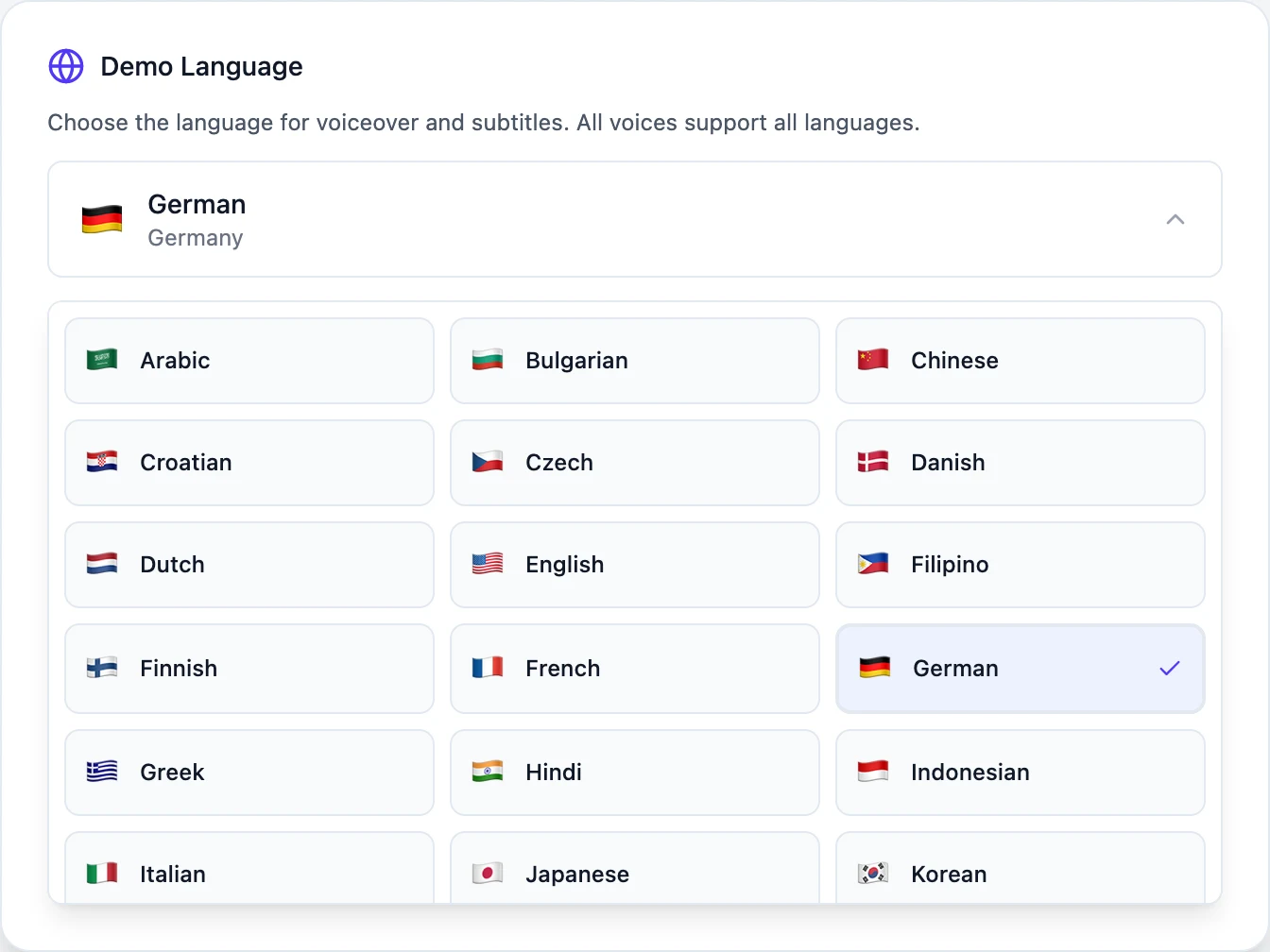
Record the demo in the language you need. When you create a demo, you choose the Demo Language from 31: Arabic, Bulgarian, Chinese, Croatian, Czech, Danish, Dutch, English, Filipino, Finnish, French, German, Greek, Hindi, Indonesian, Italian, Japanese, Korean, Malay, Norwegian, Polish, Portuguese (Brazil and Portugal), Romanian, Russian, Slovak, Spanish, Swedish, Turkish, Ukrainian and Vietnamese. The agent writes the narration in that language and records whatever your URL shows. Point it at the localised version of your product and the voice and the screen agree.
Translate a finished demo. When you only need the voice and captions in another language, a Language Variation reuses the original recording. It translates the script, including any edits you made, generates new voiceover and captions, translates the intro and outro text, and keeps your zooms, re-timed to the new narration. If the demo uses an AI presenter, the presenter speaks the new language too, in any of the 28 languages presenters speak. This is route 2 from above, inside the same tool: quick and cheap, with the product's screens unchanged.
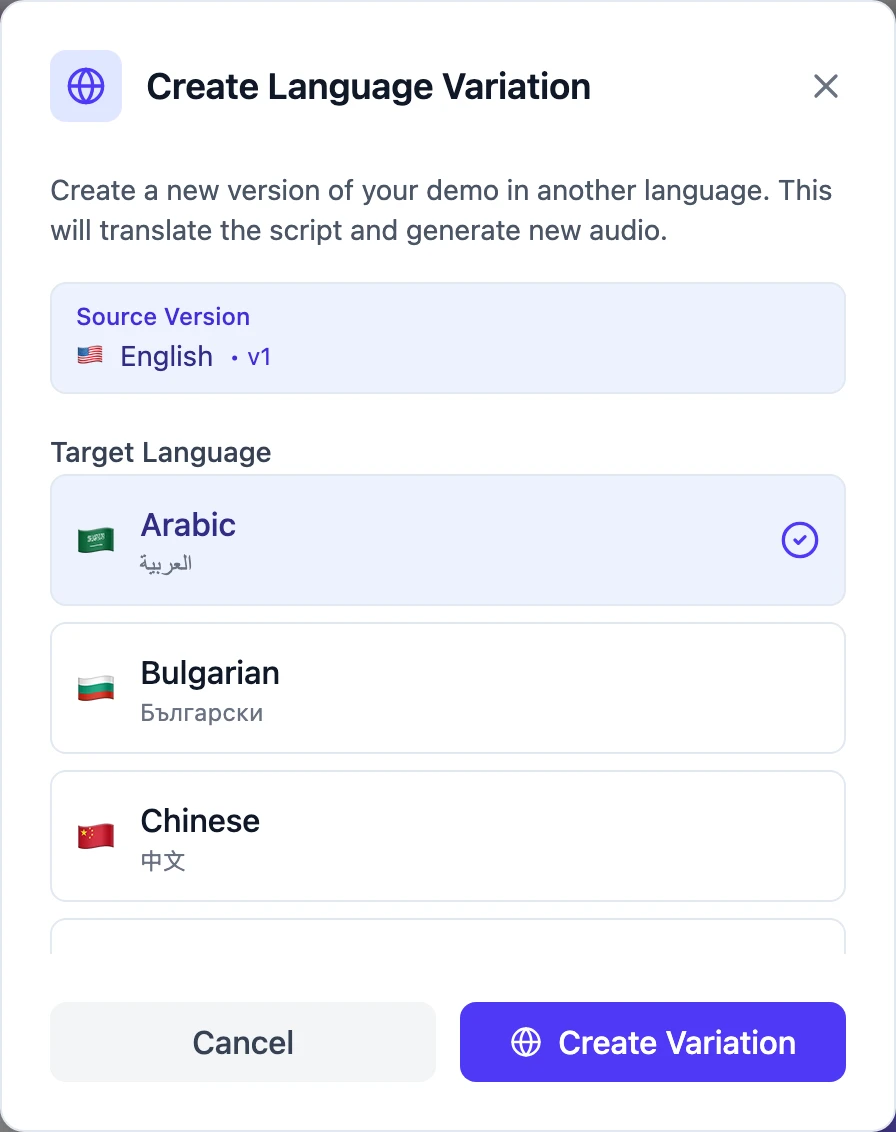
Captions in right-to-left languages such as Arabic are laid out right to left, and a product name written in Latin letters inside an Arabic sentence stays in the right place. The interactive demo made from the same recording has its own language setting, so the clickable version can be in a different language from the video.
Where Demosmith falls short today, so you can plan around it:
- There is no glossary or do-not-translate list to save. The AI is told to keep product names and UI labels as written, but you cannot store your own rules.
- A Language Variation goes straight to voiceover. You review and correct the translated script in the editor afterwards, which re-renders the video.
- There is no voice cloning. You pick from Demosmith's voices, which speak every supported language.
- Each language gets its own share link. There is no language switcher on a single page.
- Language Variations are not available on the trial, and they count towards your plan's versions per video.
If your demo is a person talking to camera, HeyGen's lip sync and voice cloning will serve you better. If you need a translation memory and formal review workflow across a whole content library, Smartcat is built for that. Demosmith fits when the video is a walkthrough of your product and you want the product itself in the viewer's language. For a head-to-head on the presenter side, see Demosmith vs HeyGen.
Conclusion
AI has made the voice the easy part of translating a demo. The hard parts are the ones dubbing does not touch: the interface on screen, the product terms, the review and the next update.
So decide per video. Subtitle the social clips, dub the talking heads and the slides, and record the product walkthroughs again in the language your buyers use, with the localised version of your product on screen. Keep one glossary, review in proportion to risk, and keep the script or prompt you regenerate from, because the product will change before the year is out.
If you want to try the record-it-in-the-language route, describe one flow, set the Demo Language and point Demosmith at your localised URL. Our guide on how to write a Demosmith prompt covers the description part.
Key Takeaways
- Dubbing a demo translates the voice and captions. The product's screens stay in the original language unless you change them.
- There are four routes: subtitles, dubbing, dubbing with on-screen text replacement, and recording again in the target language.
- Match the route to the video: subtitles for social, dubbing for talking heads and slides, a new recording for product walkthroughs.
- Write a do-not-translate list for product names and UI labels before you generate anything.
- Review by risk tier, and fewer languages reviewed properly beat many languages unchecked.
- Every language multiplies the update problem, so keep the script or prompt you regenerate from.