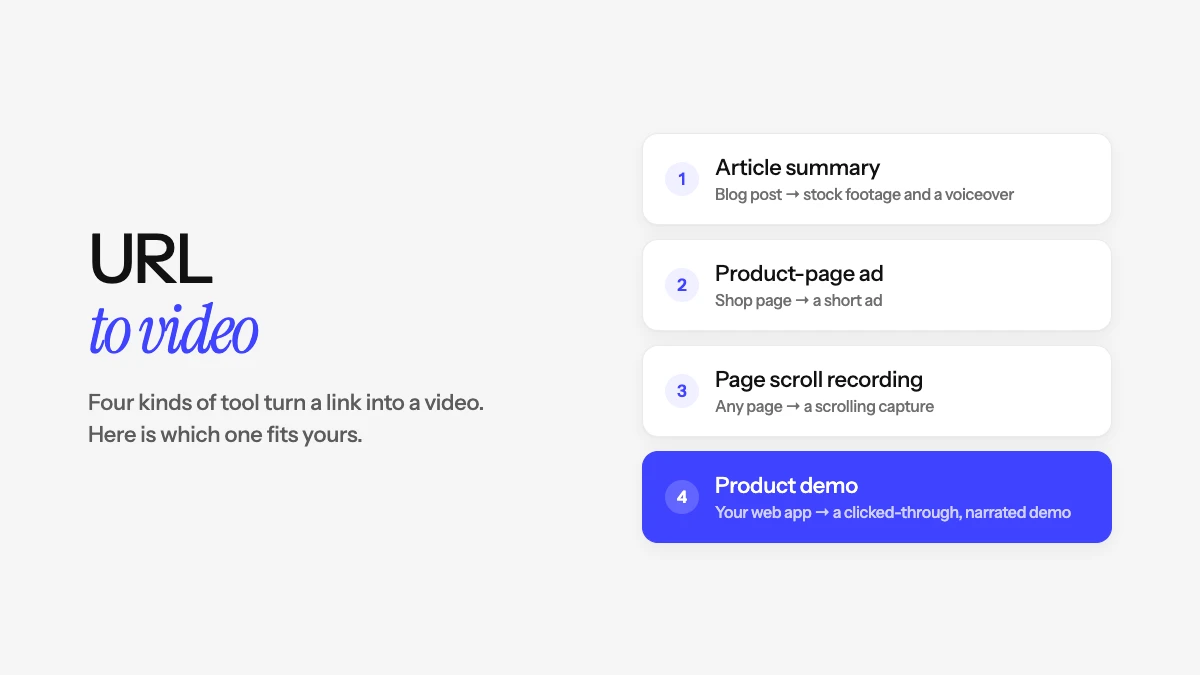
How Do You Turn a URL Into a Video?
Paste the link into a URL-to-video tool, say what you want, and it builds the video for you. The catch is that "URL to video" covers four different jobs. One tool summarises a blog post over stock footage. Another turns a product page into an ad. A third scrolls down a page and records it. The fourth opens your web app and clicks through it like a user. Pick the wrong kind and you get a nice video of the wrong thing.
Looking to save a video that’s already on a web page? That’s a video downloader, a different kind of tool. This guide is about making a new video from a link.
The Four Kinds of URL-to-Video Tool
| Kind | What it reads from the link | What the video shows | Best for |
|---|---|---|---|
| Article summary | The page’s text | Stock or generated footage under a voiceover | Blog posts, news, explainers |
| Product-page ad | Product name, images and selling points | Your product images, often with an AI presenter | Ads for physical products and offers |
| Page scroll recording | How the page looks | The page itself, scrolling from top to bottom | Showing off a site’s design, portfolio pieces |
| Product demo | Your live web app | Your real interface, clicked through step by step | SaaS launches, onboarding and sales |
1. Article summary videos
These tools read the text on the page, write a short script from it, then lay stock clips or generated images under an AI voice. Pictory’s URL to Video works this way: paste a link, choose the format and tone, edit the script it writes, then turn it into a video with visuals, voiceover and music.
It’s a quick way to get a YouTube or social version of a blog post. The footage is generic, though, so it won’t show anything specific to your business.
2. Product-page video ads
Ad tools read a product page for the name, photos and selling points, then build a short ad around them. Creatify does this: paste the product link, pick one of its AI presenters, and it writes the script and assembles the ad. It suits online shops and anyone testing many ad variations at once.
3. Page scroll recordings
The simplest kind. A tool or browser extension loads the page and records it scrolling from top to bottom. You get an honest picture of a website, which works for a design portfolio or a quick tour of a landing page. It doesn’t click anything or explain what it shows.
4. Product demos of a live web app
If the link is to software, such as your app’s dashboard, the first three kinds fall short. A summary tool narrates over stock footage. A scroll recording only shows the first screen. What you need is something that logs in, clicks through a real task and records what happens.
That’s what an AI demo agent does. Demosmith opens your product in a real browser, follows the flow you describe, then edits the recording with zooms, captions and an AI voiceover in up to 31 languages. What you get back is your actual interface, with a voice explaining each step.
How to Turn Your App’s URL Into a Demo Video
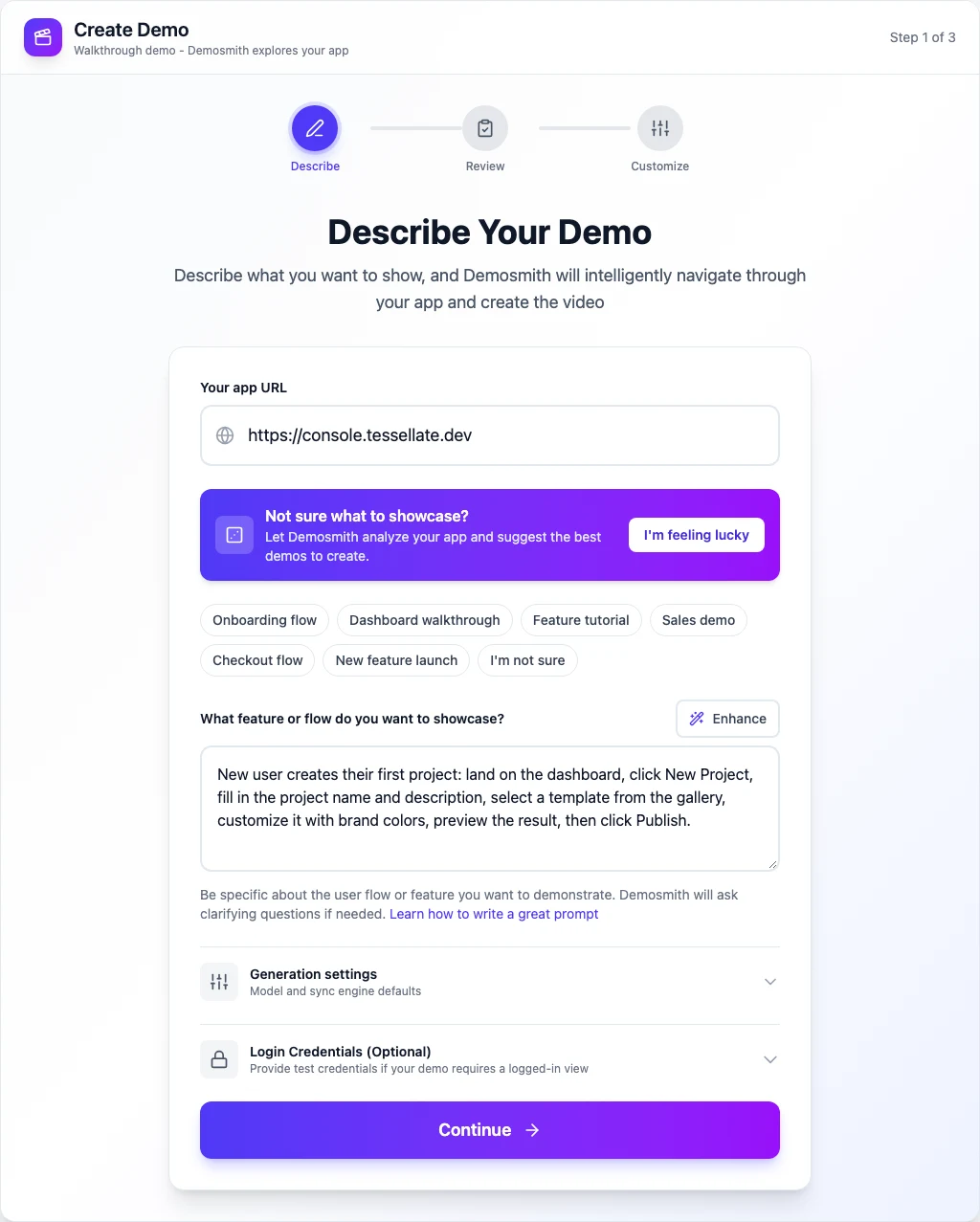
Here’s the process in Demosmith, start to finish:
- Paste your app’s URL. Use the page where the flow starts, for example your dashboard.
- Describe the flow in one or two sentences. Name the steps a viewer should see, such as "a new user creates their first project, picks a template and publishes it."
- Add your login if the app needs one. If you skip it and the agent reaches a sign-in page or a two-factor prompt, it pauses and asks you.
- Check the details, then pick the voice, language and style.
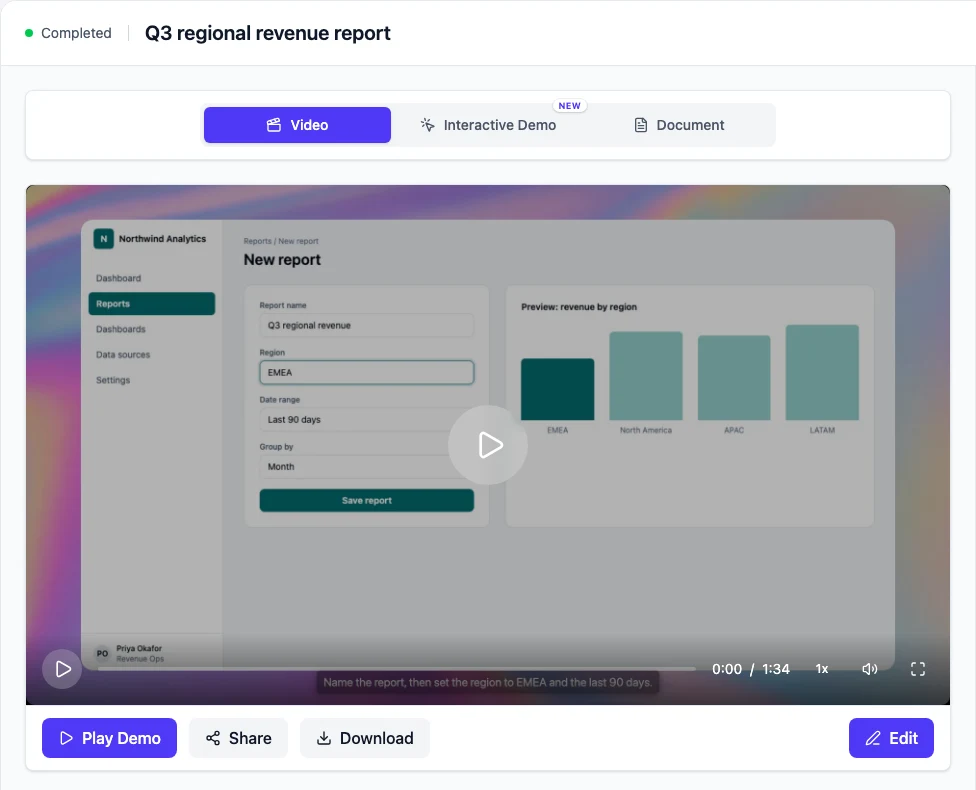
- Get the video. Share a link, download the MP4, or edit it and make a new version.
The finished demo lands in your library, ready to play, share or download:
For a closer look at what happens between the link and the finished file, read how AI generates a demo video from a URL.
Tips for a Better Video From a Link
- Link to the right page. A blog post makes a better summary than a home page. For a product demo, start where the flow starts, not on your marketing site.
- Say what the video is for. "A 60-second explainer for LinkedIn" and "a 2-minute onboarding walkthrough" lead to very different videos.
- Read the script before you render. Summary, ad and demo tools all write one. It takes a minute to fix a wrong product name or an awkward line.
- Keep private data out of shot. Use an account with sample data so real customer details stay out of the video.
- Plan to remake it. Pages and products change. A video you can regenerate from the same link stays accurate longer than one you edited by hand.
Which Kind Should You Use?
- You want a video version of an article or blog post: an article summary tool such as Pictory.
- You sell products online and need ads: a product-page ad tool such as Creatify.
- You want to show off how a website looks: a page scroll recorder.
- You need to show how your software works: Demosmith, because the video has to be your real product.
Software is something people use, so a good demo shows someone using it. A recording of the page alone can’t do that.
To compare tools that make product demos specifically, see our roundup of AI demo video generators. If you’re weighing an avatar tool for the job, our Synthesia alternatives for SaaS demos covers where presenter videos fit and where they don’t.
Frequently Asked Questions
Can AI turn a URL into a video?
Yes. Paste a link into a URL-to-video tool and it builds the video for you. What you get depends on the tool: a summary of an article over stock footage, an ad built from a product page, a recording of the page scrolling, or a demo that clicks through your live web app.
Is there a free URL to video tool?
Several have free ways to try them. Creatify lets you make a first video ad without a credit card. Demosmith has a 3-day trial with one product demo, also without a card.
How long does it take to turn a URL into a video?
Usually minutes. Ad and summary tools produce a draft quickly from the page text. A product demo takes longer because an agent has to click through your app and record it, about 10 minutes for a short demo in Demosmith.
Can a URL-to-video tool record a page behind a login?
Tools that read a page’s text only see what a logged-out visitor sees. Demosmith can record behind a login: add your login with your request, or the agent pauses and asks when it reaches a sign-in page or a two-factor code.
How do I download a video from a URL?
That needs a video downloader, or the download button on the site itself, rather than a URL-to-video maker. Only download videos you own or have permission to use.
Key Takeaways
- "URL to video" means four different jobs. Article summaries, product ads, scroll recordings and product demos.
- Match the tool to the link. An article wants a summary, a shop page wants an ad, a web app wants a demo.
- For software, the footage has to be real. An AI demo agent clicks through your live product and records it.
- Read the script before you render. It’s the fastest place to catch a mistake.