What Is B-Roll?
B-roll is supporting footage that plays over or between the main shot of a video. In a talking-head video, the person speaking is the A-roll, and everything you cut to while they talk is B-roll. Merriam-Webster defines it as footage "used to provide supplementary material." For a software company, the most useful B-roll is short footage of the product doing its job: a click, a result, a number changing.
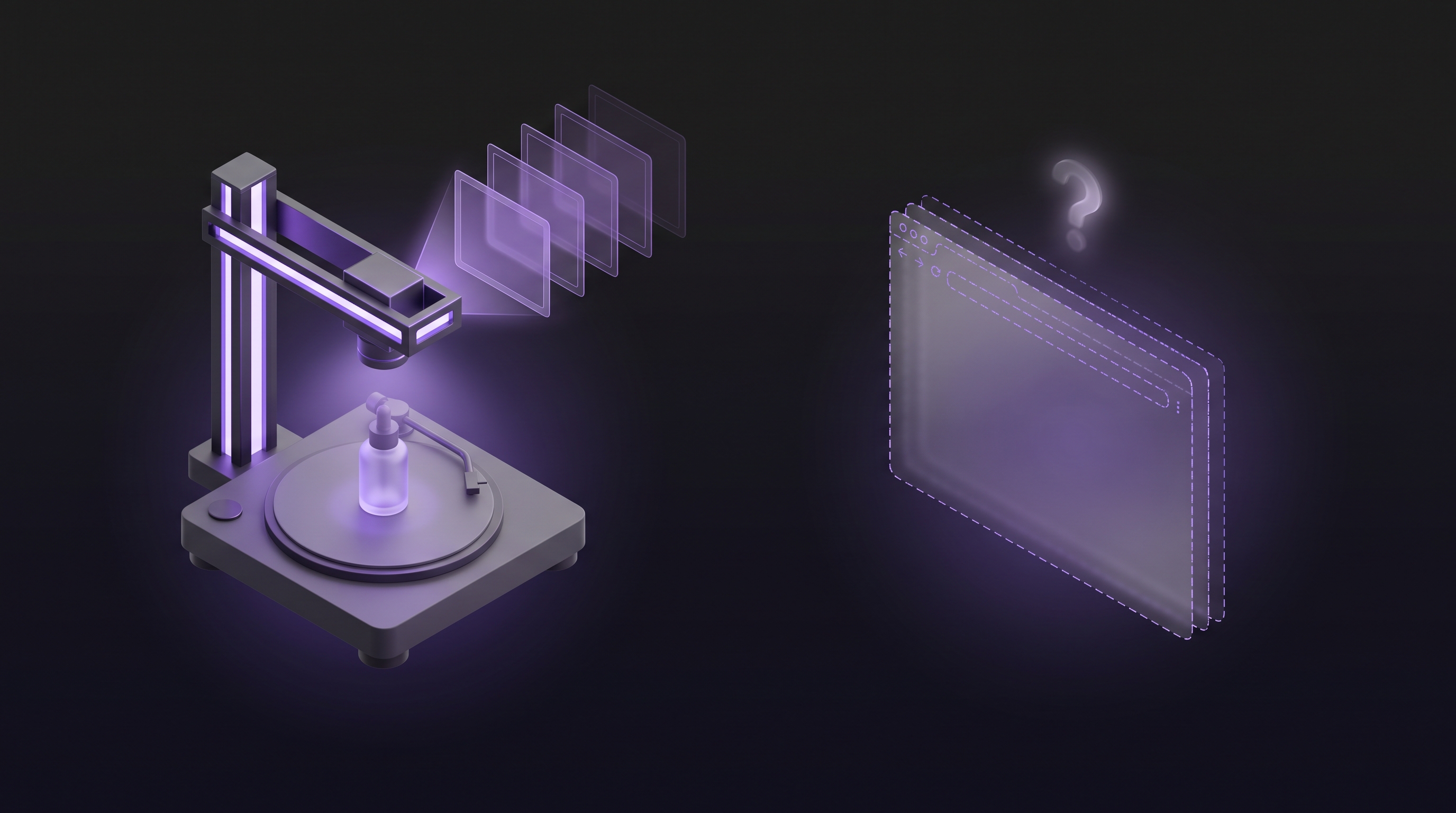
Film crews shoot B-roll with a second camera. A SaaS team has nothing to point a camera at, because the product lives on a screen. So the real question is where B-roll of a software product comes from when nobody wants to film anything.
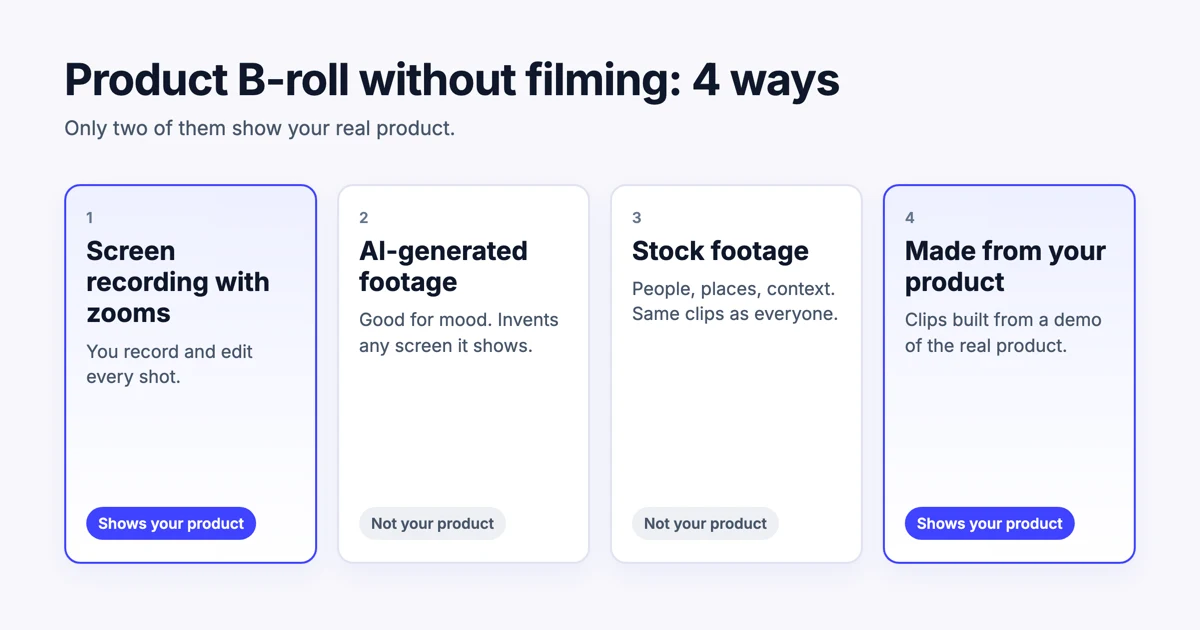
There are four answers, and they are not equal. Two show your real product and two cannot. We make Demosmith, whose AI demo agent makes B-roll clips from your product, so weigh our view with that in mind. We have kept the other three routes honest, because each one is the right choice for some shots.
Why B-Roll for a SaaS Product Is Different
The B-roll guides that rank on Google today are written for filmmakers and YouTubers. Their advice is to shoot your hands, your desk, the coffee and the city outside. That footage sets a mood. For a software product it rarely tells the viewer anything, because what they want to see is the software.
Product B-roll has one job: show that the product works. A viewer who sees an invoice go from draft to paid in two seconds learns more than one who sees a laptop on a sunny desk. So the test for every B-roll shot of a SaaS product is simple. Does it show the real product doing something?
Mood footage can sit around your product. It can never stand in for it.
4 Ways to Get Product B-Roll Without Filming
The four routes, side by side:
| Route | Shows your real product | Your effort | Best for |
|---|---|---|---|
| 1. Screen recording with zooms | Yes | You record and edit every shot | One-off shots you can record yourself |
| 2. AI-generated footage | No. It invents any screen it shows | Writing prompts and picking takes | Mood and abstract scenes around the product |
| 3. Stock footage | No | Searching libraries | People at work, places, context |
| 4. B-roll made from your product | Yes | Paste a link and describe the flow | A full set of product clips in every shape |
1. Screen Recording With Zooms
The most direct route is to record your own screen. A plain recording makes weak B-roll: the interface is small, the cursor wanders and nothing tells the eye where to look. Recorders built for product video fix that. Screen Studio, for example, is a Mac screen recorder that adds smooth zooms, cursor movement and captions, and lets you switch one recording between wide, square and vertical. It costs $29 a month, or $9 a month billed yearly. We compare it with Tella, FocuSee and Descript in our screen recorder comparison.
The catch is the work. Every shot needs a clean account with realistic data, a steady hand, a recording, a trim and an export per shape. That is fine for three shots. For a set of fifteen, in three shapes, it becomes an afternoon, and it starts again when the interface changes.
2. AI-Generated Footage
Text-to-video tools such as Runway, Google Veo, OpenAI's Sora and Kling turn a prompt into footage. They are good at what traditional B-roll does: an office at golden hour, data flowing between shapes, hands on a keyboard. As mood footage, the results can look expensive.
What they cannot do is show your product. A generator has never seen your interface, so any screen in its footage is invented. Put that next to a claim about what your product does and you are showing a product that does not exist. Use generated footage around the product, never as the product. Our guide to using Veo 3 for product demo videos goes further into where these tools fit.
3. Stock Footage
Stock libraries are the classic source of B-roll. Pexels offers free video that you can use and edit without attribution, including in ads and marketing, according to its licence. Paid libraries such as Storyblocks and Envato Elements add more choice for a subscription.
Two limits apply. Stock footage shows generic scenes, never your product, and your competitors can download the same clips. The Pexels licence also forbids implying that people or brands in the footage endorse your product, so a smiling stranger at a laptop cannot be presented as your customer. Stock works for context, such as a team in a meeting or a shop counter, and for little else in a product video.
4. B-Roll Made From Your Product
The fourth route gives you footage of the real product without anyone recording it. Demosmith opens your product from a link, clicks through the flow you describe and records a narrated product demo video. From any finished demo, it makes a social pack: a 15 to 30 second motion graphic with music, and 5 to 8 silent B-roll clips of your product.
The clips are built from the real screens in that demo, in your brand colours and fonts, and each one focuses on a single moment:
- The key moment: the click that shows what the product does.
- A feature in focus: one detail, highlighted.
- The result: what a customer gets at the end.
- How it works: the steps, in order.
- Your logo: a clean sign-off for the end of a video.
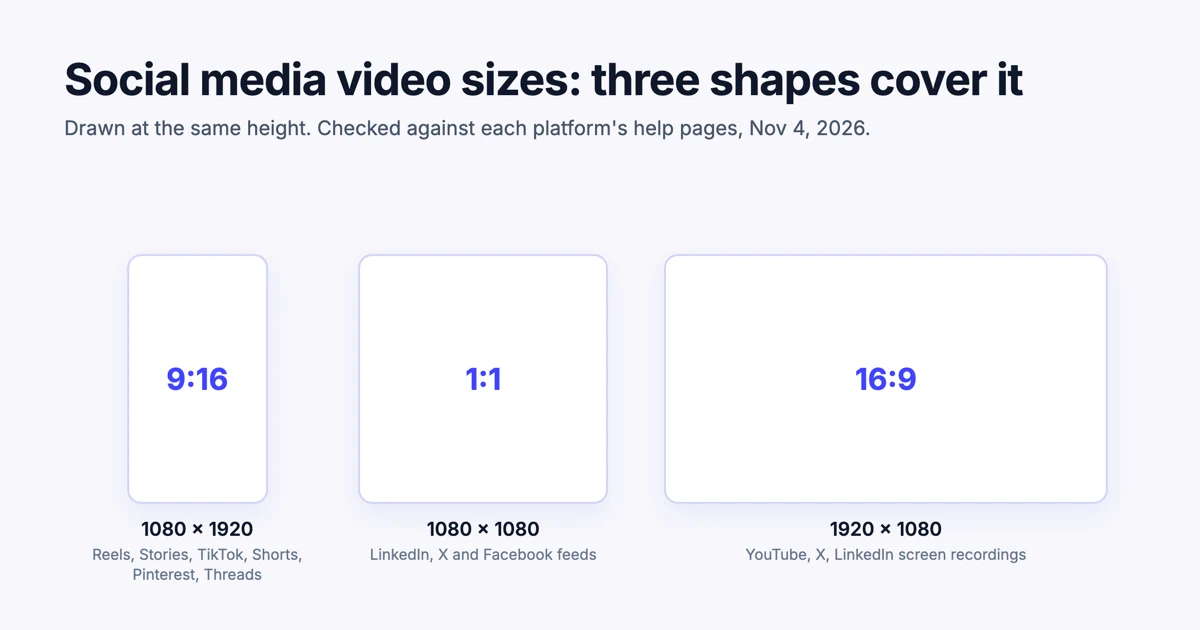
Every clip comes in vertical 9:16, square 1:1 and landscape 16:9, so the same shot is ready for Reels, the LinkedIn feed and a YouTube edit. Our guide to social media video sizes explains which shape goes where.
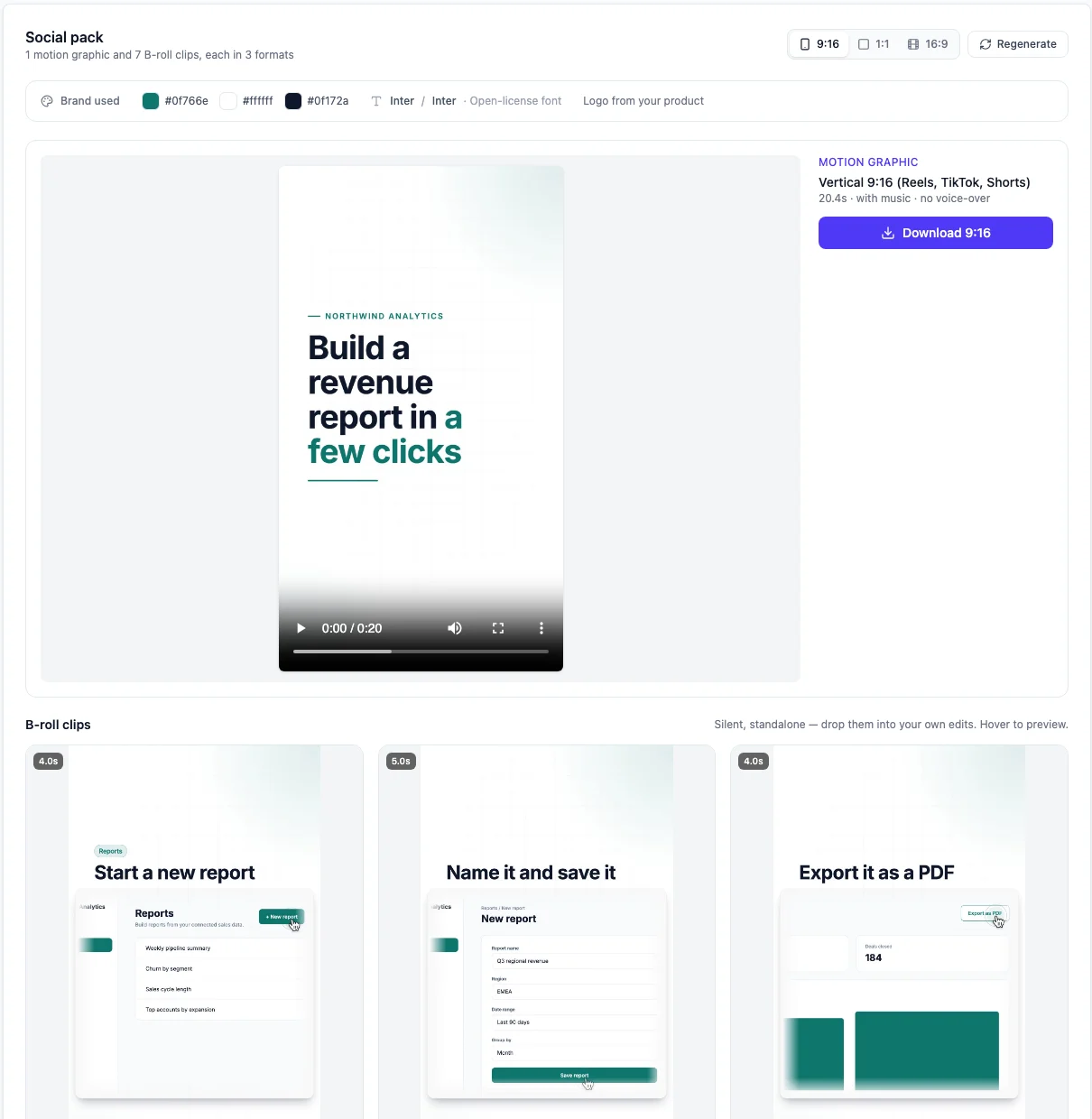
To make one, open a finished demo, choose the Social tab and click Generate social pack. Social packs come with every paid plan, starting with Starter at $40 a month, and each pack uses 1 AI minute. Two limits to know: packs work on demos Demosmith recorded itself, not on videos you upload, and you download the clips rather than share them by link.
20 B-Roll Shot Ideas for a SaaS Product
Whichever route you choose, start with a shot list. These twenty ideas show the product doing something, which is the test from earlier. Pick the five or six that fit your product best.
Moments of action
- The main button being clicked, and what happens next.
- A form filling in with realistic data.
- A search returning the right result.
- A drag and drop: a card moving to Done, a file into a folder.
- A toggle switching on and a setting taking effect.
- An import finishing and the table filling up.
Results
- A number changing on a dashboard.
- A chart drawing itself.
- A status going from pending to done.
- A confirmation message or a success state.
- The finished output: the report, the invoice, the published page.
Details
- A close-up of the feature you just launched.
- A tooltip or help hint appearing.
- A notification arriving.
- The same screen in another language.
- The empty state, then the same screen in use.
Context and sign-offs
- The product in its setting, such as a dashboard on a laptop in a shop (stock or generated footage works here).
- The steps of a workflow, one after another.
- A before and after: the spreadsheet, then your product.
- Your logo on its own, to end a video.
Only number 17 can use stock or generated footage. Every other idea needs your real product, or at least your own logo.
How to Use Product B-Roll
A set of clips can do several jobs:
- Under a voice. Cut to a clip whenever a founder video, a webinar or a podcast mentions a feature. The viewer sees what is being described.
- On its own. A single clip with a line of text makes a social post. A run of them makes a short feature tour, or a week of posts from one demo.
- In ads. Product footage tells a viewer what they would be buying, which stock footage cannot.
- In a launch. Clips of a new feature drop straight into a feature announcement video or a launch post.
Some editing habits help in all four. Keep each clip to one action and cut once it finishes. B-roll clips are silent by nature, so put any key words on screen. Match the shape to where the video will play instead of cropping one shape into another, because a crop throws away the part of the screen you wanted to show.
Conclusion
The best B-roll of a software product is the software, doing its job, a few seconds at a time.
Screen recording gets you there if you have the time to record and edit every shot. AI-generated footage and stock footage are useful around the product, for mood and context, but neither can show the product itself. If you want a full set of real product clips in every shape without recording anything, make a demo in Demosmith and generate its social pack.
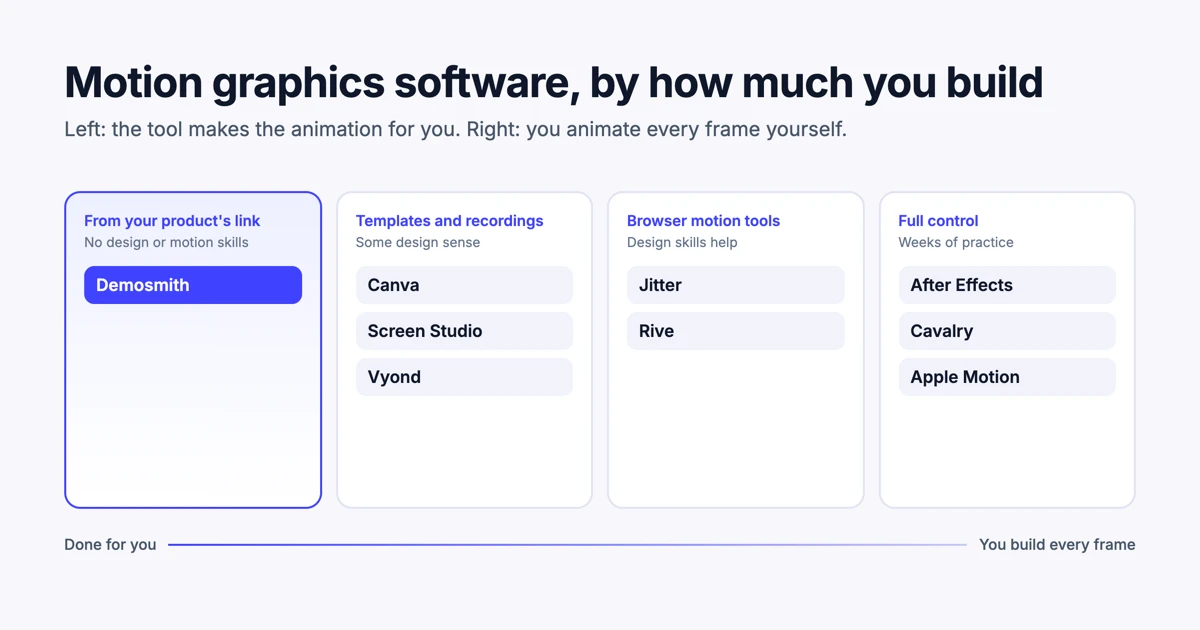
For a wider look at tools that make product video for you, see the best AI demo video generators in 2026. If you would rather build animations by hand, our guide to motion graphics software for marketers compares ten tools.
Key Takeaways
- B-roll is supporting footage you cut to while the main story continues.
- For a SaaS product, good B-roll shows the real product doing something, such as a click and its result.
- Screen recording with zooms shows your real product, but every shot is manual work.
- AI-generated footage invents any interface it shows. Use it for mood, never as your product.
- Stock footage is free or cheap but generic, and licences such as Pexels forbid implying endorsement.
- Demosmith makes 5 to 8 silent B-roll clips of your real product from a demo it records, in 9:16, 1:1 and 16:9.
Want B-roll of your own product without filming or recording anything? Start with Demosmith, make a demo, then turn it into a social pack.