What's New: An AI Presenter for Product Demo Videos
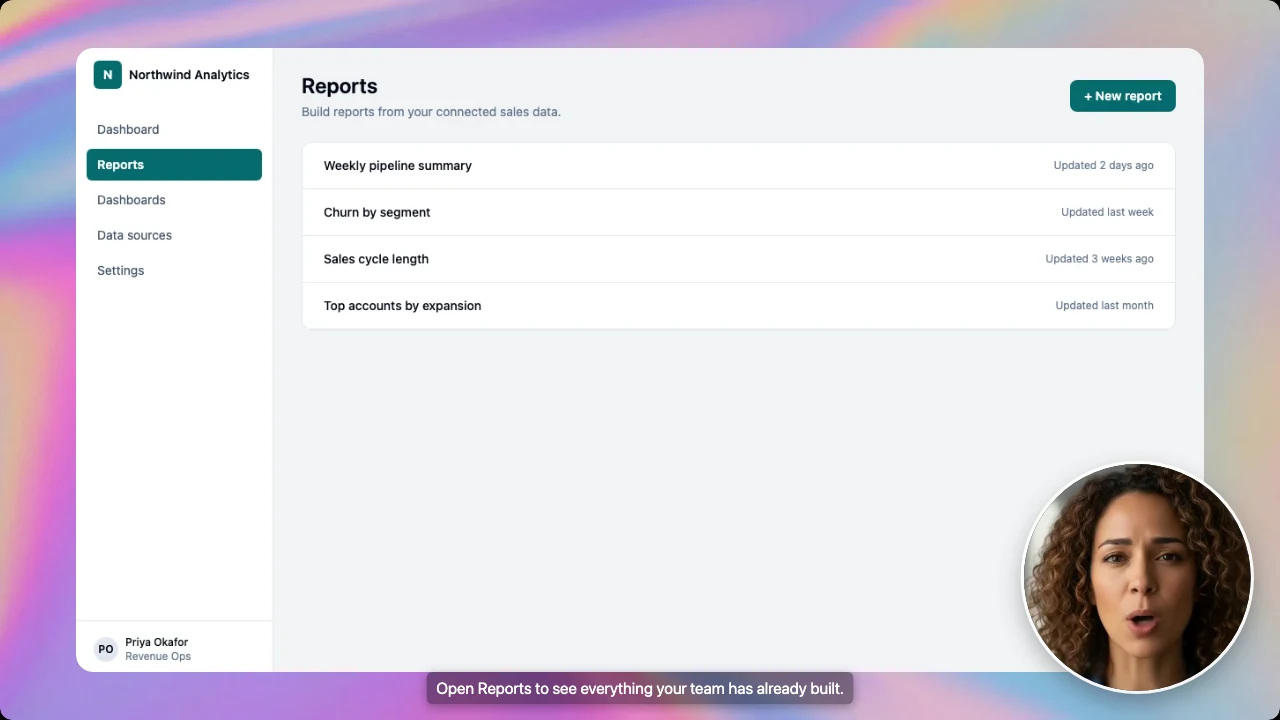
Demosmith can now add an AI presenter to your product demo videos. Turn it on, pick a face, and the finished video shows a person in a small circle in the corner, talking your viewer through the product. Your product still fills the rest of the screen.
People have asked us for a face on their demos for months, and the tools that offer one make you give something up. Avatar tools like HeyGen and Synthesia give you a polished presenter, but your product is missing unless you record it yourself and paste it in. A plain screen recording shows the product, but nobody is there, and two minutes of a voice over a moving cursor can feel like reading a manual.
With Demosmith you still record nothing. You give our AI demo agent a link to your product and say what to show. It clicks through, makes the video, and a presenter can now talk your viewers through it.
The presenter is on the Starter, Pro, Business and Enterprise plans. Here is how it works.
What the AI Presenter Is, and What It Is Not
Picture the small video of a speaker you see in the corner of a webinar or a YouTube tutorial. That is the presenter: a person in a circle, talking, while the main screen does the showing.
Their lips move with the voiceover, so they look like they are actually speaking rather than a photo stuck on top. Some tools call this an AI avatar. We call it a presenter.
The presenter never takes over the whole screen, and that is on purpose. Someone watching a product demo wants to see the product. A presenter who fills the frame hides it every time they talk.
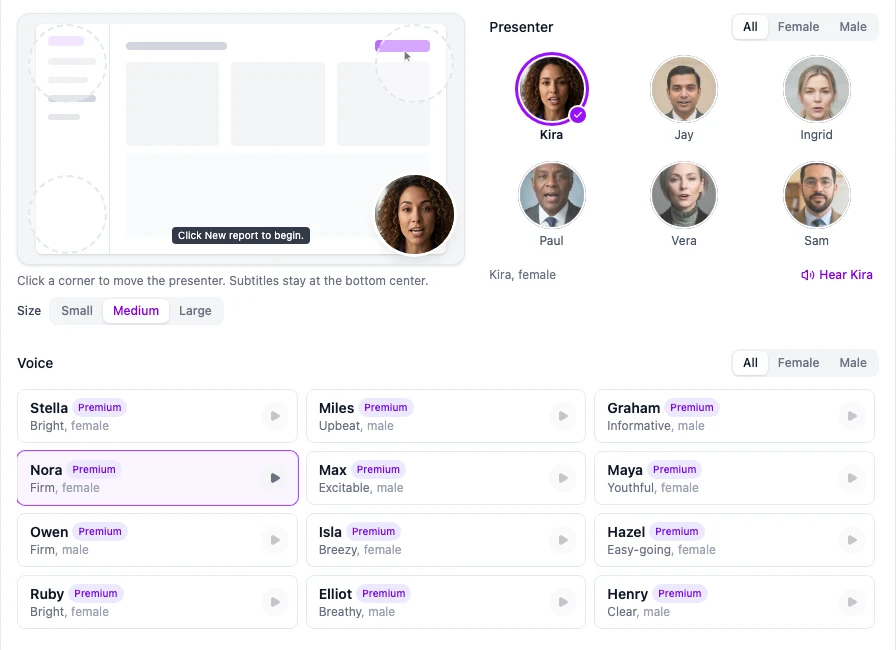
You can choose from six presenters, three women and three men.
Each presenter can speak with any of 30 voices, so you can match the face and the voice to your brand and your audience.
How to Add an AI Presenter to a Product Demo
You set it up in the Voiceover section when you start a new demo. It takes about a minute:
- Turn on "AI presenter" in the Voiceover section.
- Pick a presenter. Hover over a face to see them talk, or click "Hear Kira" to hear one with sound.
- Choose where they sit. You see a small preview of your video, and you click the corner you want.
- Pick a size: Small, Medium or Large.
- Pick a voice from the 30 made for the presenter, then create your demo.
Then create the demo as usual. When it is ready, it carries an "AI presenter" label in your library, so you can tell at a glance which videos have one.
The presenter voices also work on their own. If you like one, use it for a video with no presenter at all.
The presenter reads the script Demosmith writes from your description, so a clear description still matters more than anything else. Our guide to describing your demo well applies here too.
Corners and Sizes
Where the presenter sits sounds like a small detail until they cover the button you want people to watch. Put them in the corner your product leaves empty. Captions always stay at the bottom, in the middle.
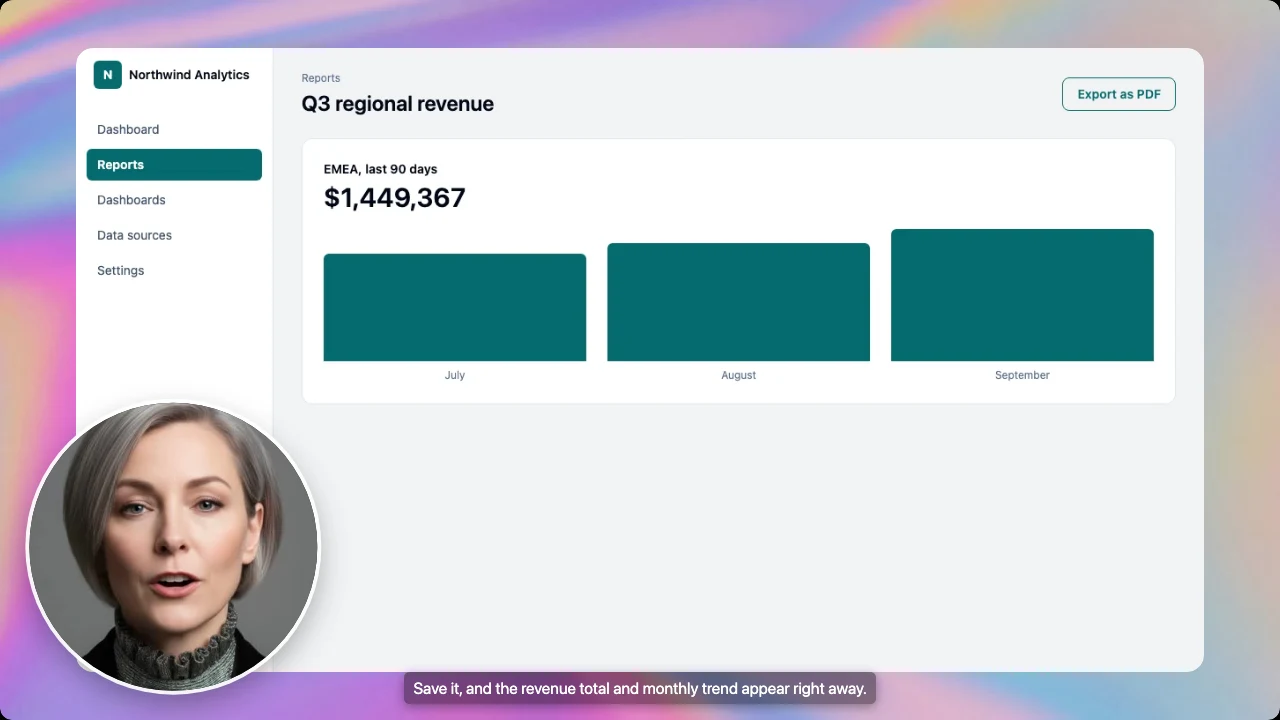
Go large when the person matters as much as the screen: a welcome video for new users, the opening seconds of a homepage video, or a short intro before the product takes over.
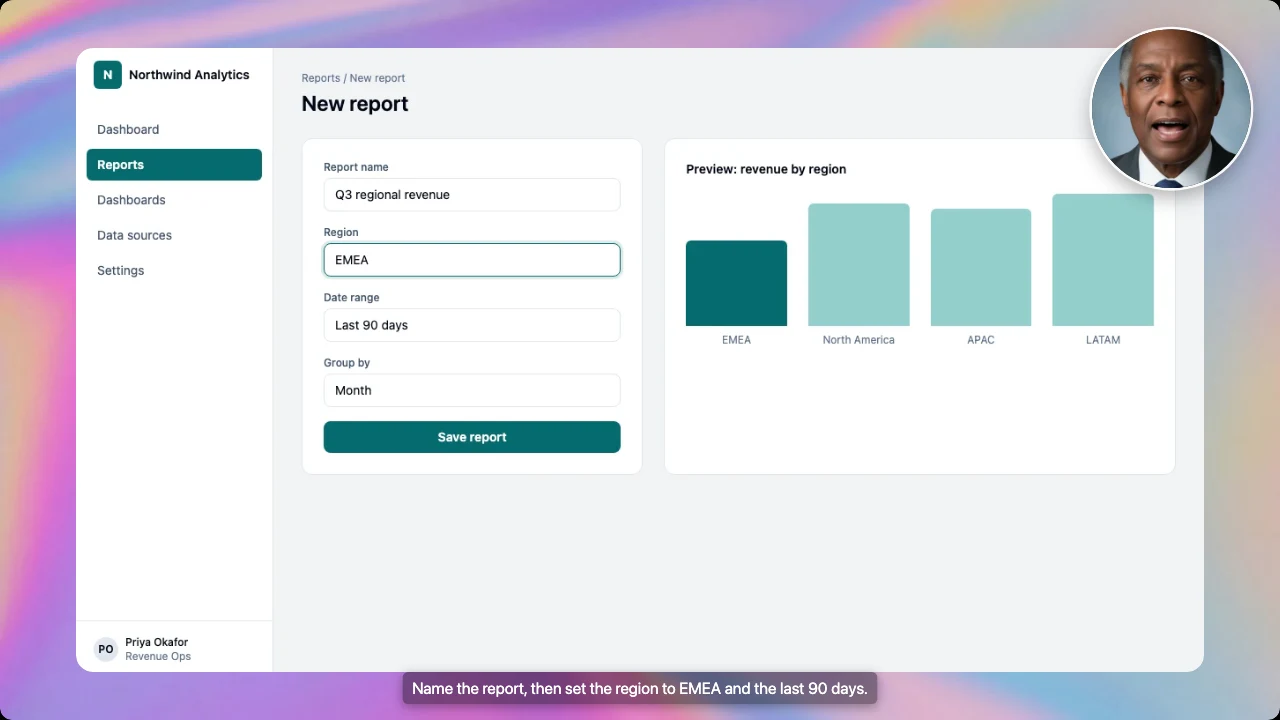
Go small on busy screens like dashboards, tables, settings and long forms. Medium sits in between and works for most demos.
Changed your mind after the video is made? Open it in the editor and move or resize the presenter. Nothing else in the video changes.
When a Talking Head Helps a Demo Video, and When It Does Not
A face does not make every video better. We would use one for:
- Welcome videos for new users. The first video someone sees inside your product feels friendlier with a person in it.
- Homepage videos. Visitors decide in seconds whether to keep watching, and a face gives them somewhere to look.
- Videos you send after a sales call. With someone on screen, it reads as a follow-up from a person rather than a screen recording.
- Help videos. Answer a common support question with a short video in which someone walks the customer through the fix.
- Videos in other languages. The same presenter can talk to your Spanish, German or French customers in their own language.
We would leave it off for very busy screens where every corner holds something important, and for short clips of a single feature where there is no time for anyone to introduce anything.
Not sure? Make the video without one first. You can add the presenter later.
Which Languages the Presenter Speaks
The presenter speaks 28 languages, including English, Spanish, French, German, Portuguese, Italian, Dutch, Arabic, Hindi and Korean. Pick the language when you set up the demo and the presenter speaks it, with captions to match.
Selling in more than one country? Make your demo once, then make a version for each market with the same presenter, so every customer sees the same face speaking their language. Our guide to multilingual product demos shows how teams turn one demo into many languages.
Which Plans Include It
The presenter is included on Starter ($40 a month), Pro ($99), Business ($250) and Enterprise. It is not part of the free three-day trial.
You can also add a presenter to a video you made before it launched. Open the video in the editor, turn the presenter on and save. The pricing page has the full plan details.
Conclusion
A demo video used to make you choose between a face and the product. Now the product keeps the screen and the face gets a corner.
We made the presenter for the videos where a voice on its own feels a little thin, like the first one a new user sees. Everywhere else, videos without a presenter work exactly as they did, and you can have each kind in the same account. Any finished video can also become a clickable interactive demo and a written guide.
If you are comparing tools that put a person on screen, these go further:
- Demosmith vs HeyGen, avatar videos from a script against videos of your real product.
- Demosmith vs Synthesia, the same question for training and onboarding.
- Demosmith vs Glimeo, another tool that clicks through your product and adds a presenter.
- Demosmith vs Colossyan, for software training videos and courses.
- Best Synthesia alternatives for SaaS demos, if you want more options.
- The best AI demo video generators in 2026, for the whole category.
Key Takeaways
- The AI presenter talks your viewer through the demo from a small circle in the corner, and your product keeps the rest of the screen.
- Choose from six presenters, three women and three men, and pair them with any of 30 voices.
- Put the presenter in any corner at one of three sizes, and change either later.
- The presenter speaks 28 languages, so each language version of a demo can keep the same face.
- You can add a presenter to videos you have already made, too.
- It is on Starter, Pro, Business and Enterprise, not the free trial.
Already on a paid plan? Start a new demo and turn on the presenter. Not yet? Starter is $40 a month and includes it.